Run AI agents on your own computer
Connect a macOS, Linux, or Windows machine so Manyfold can run agents in your local workspace, toolchain, and network environment.
Quick answer: In Create agent → Advanced → Where it runs, choose Connect a new computer. Run mf setup on that computer, then return to the creation flow and select the connected machine.
Before you begin
- Manyfold access: You need to sign in to Manyfold and have permission to create an agent.
- Target computer: Prepare the Mac, Linux, or Windows computer that will run the agent and make sure it can connect to the internet.
- Directory and tools: Choose the directory the agent should access and install the coding-agent CLI you plan to use.
If you are unsure whether to use a sandbox or your own computer, read the sandbox vs. self-owned computer comparison first.
When should you use a self-owned computer?
A self-owned computer routes agent work to a machine you control rather than to a cloud sandbox. Once installed, the mf CLI keeps a local daemon connected, advertises available coding agents, and handles agent sessions when work is assigned.
Choose your own computer when an agent needs direct access to local repositories or files, existing CLI tools and sign-ins, a GPU, a VPN, a private network, or a specific development environment. Manyfold remains the team control plane; the selected computer performs the actual workspace and tool operations.
Step 1: Connect a new computer while creating an agent
- Choose Create agent in Manyfold.
- Open Advanced and scroll to Where it runs.
- Choose Connect a new computer.
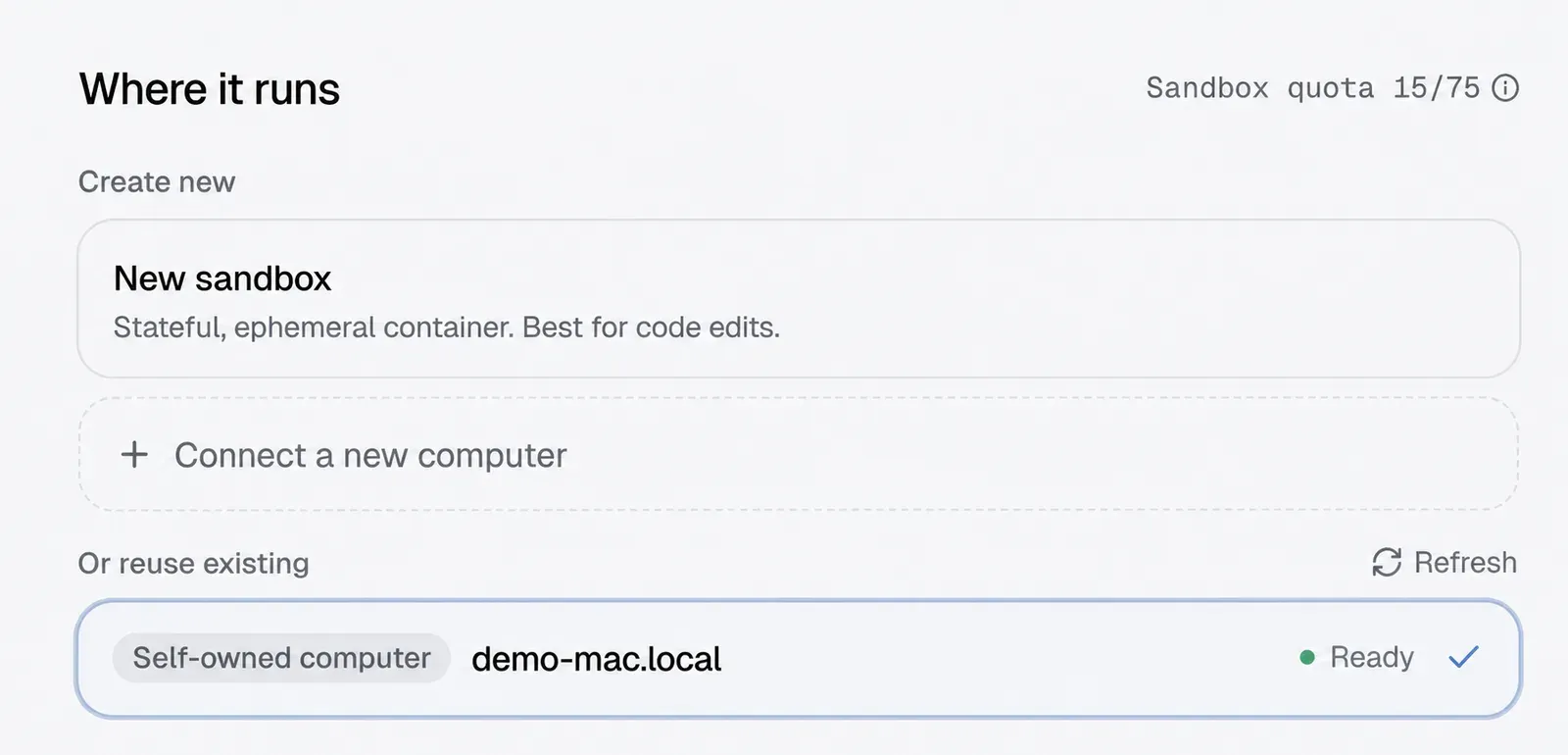
Connect a new self-owned computer from the agent creation flow.
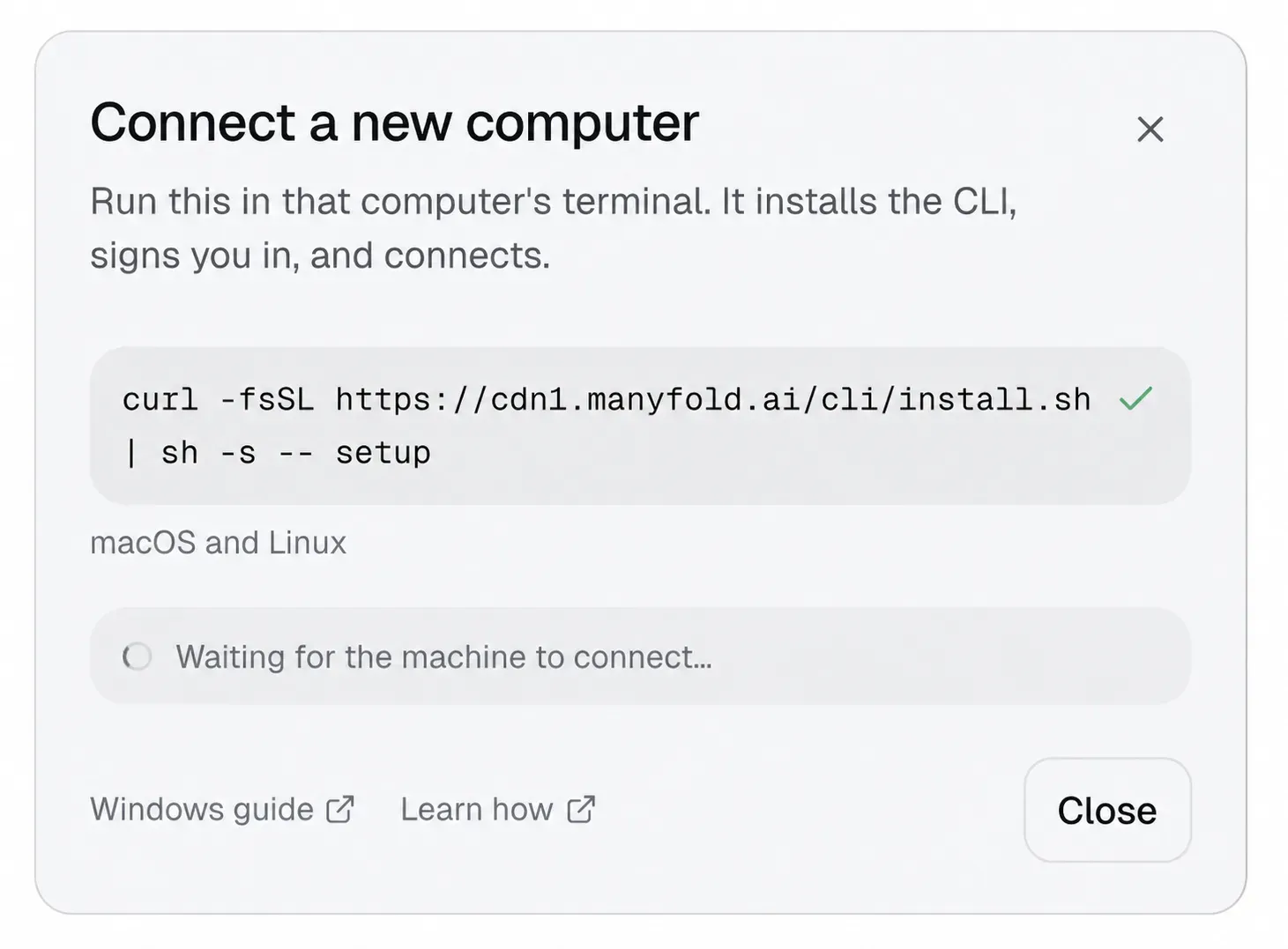
The connection dialog provides the macOS/Linux command and a Windows guide.
Step 2: Install and connect Manyfold on the target machine
Open a terminal on the same computer that will run the agent, then follow the instructions for its operating system.
- macOS: Open Terminal from Applications → Utilities, or search for Terminal with Spotlight.
- Linux: Open your system terminal.
- Windows: Choose Windows guide in the connection dialog and use PowerShell or Command Prompt.
macOS and Linux
Paste and run:
curl -fsSL https://manyfold.ai/cli/install.sh | sh -s -- setupWindows
- Choose Windows guide in the connection dialog.
- Download the Windows
mf.exebinary, extract it into a stable folder, and add that folder to your WindowsPATH. - Open PowerShell or Command Prompt and run:
mf setupFollow the browser sign-in and authorization flow. Windows does not automatically install a Manyfold background service. After setup, run the daemon in the foreground and keep that terminal open:
mf daemon start --foregroundTo keep the daemon available after a restart, configure Windows Task Scheduler or your preferred service manager to run that command at sign-in.
Step 3: Sign in and confirm that the machine is connected
The installer opens a browser for you to sign in and authorize Manyfold. When it completes, mf registers the machine, detects installed coding agents, and starts the local daemon. Return to Manyfold; when the machine has a green state and says connected, choose Use this machine.
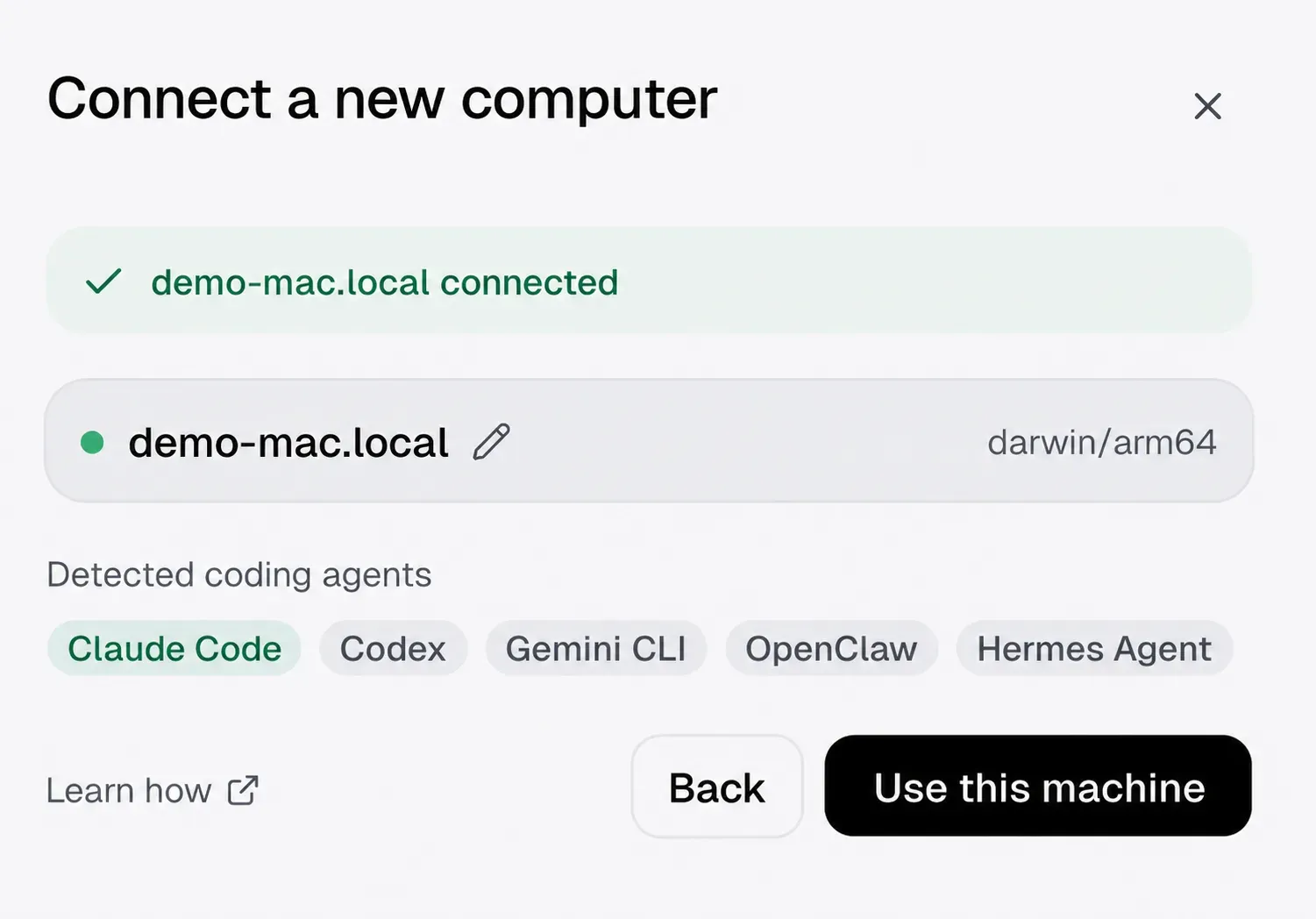
A green state means the machine is ready to be selected as an agent runtime.
Security note: Do not publish sign-in URLs, authorization codes, machine tokens, API keys, or terminal screenshots that contain them.
Step 4: Choose the computer, workspace, and model source
In Where it runs, choose the connected self-owned computer with the Ready status. Then configure the agent’s Workspace, the local working directory that the agent can use.
- For a new agent, keep the default:
~/.manyfold/workspaces/{agent-id}. - For an existing project, enter its absolute path, such as
/Users/your-name/Projects/my-app. - Make sure the signed-in computer user has read and write access to that directory.
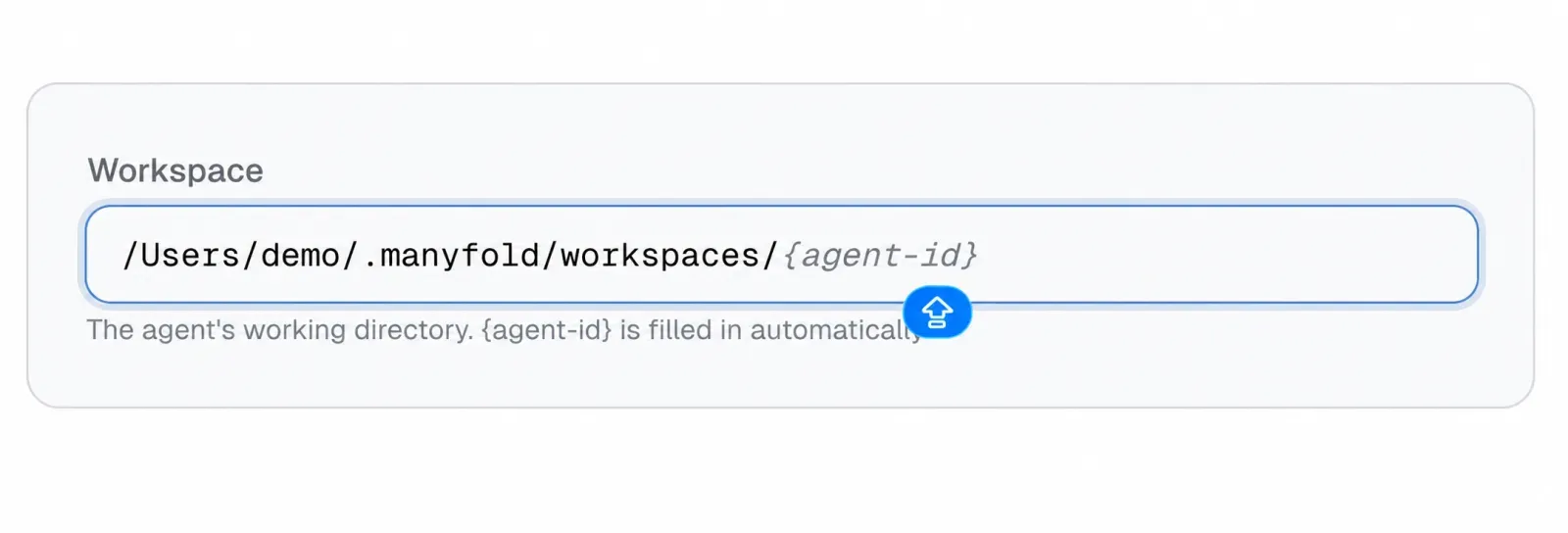
Choose a local working directory that is appropriate for the agent and its permissions.
Choose a model source
| Model source | Best for |
|---|---|
| Manyfold | Models configured, managed, or provided by your Manyfold workspace. Use this for centralized provider, usage, and cost management. |
| Local config | Credentials already available to the selected coding agent on this computer, such as a CLI sign-in session, subscription, or framework-specific API key. |
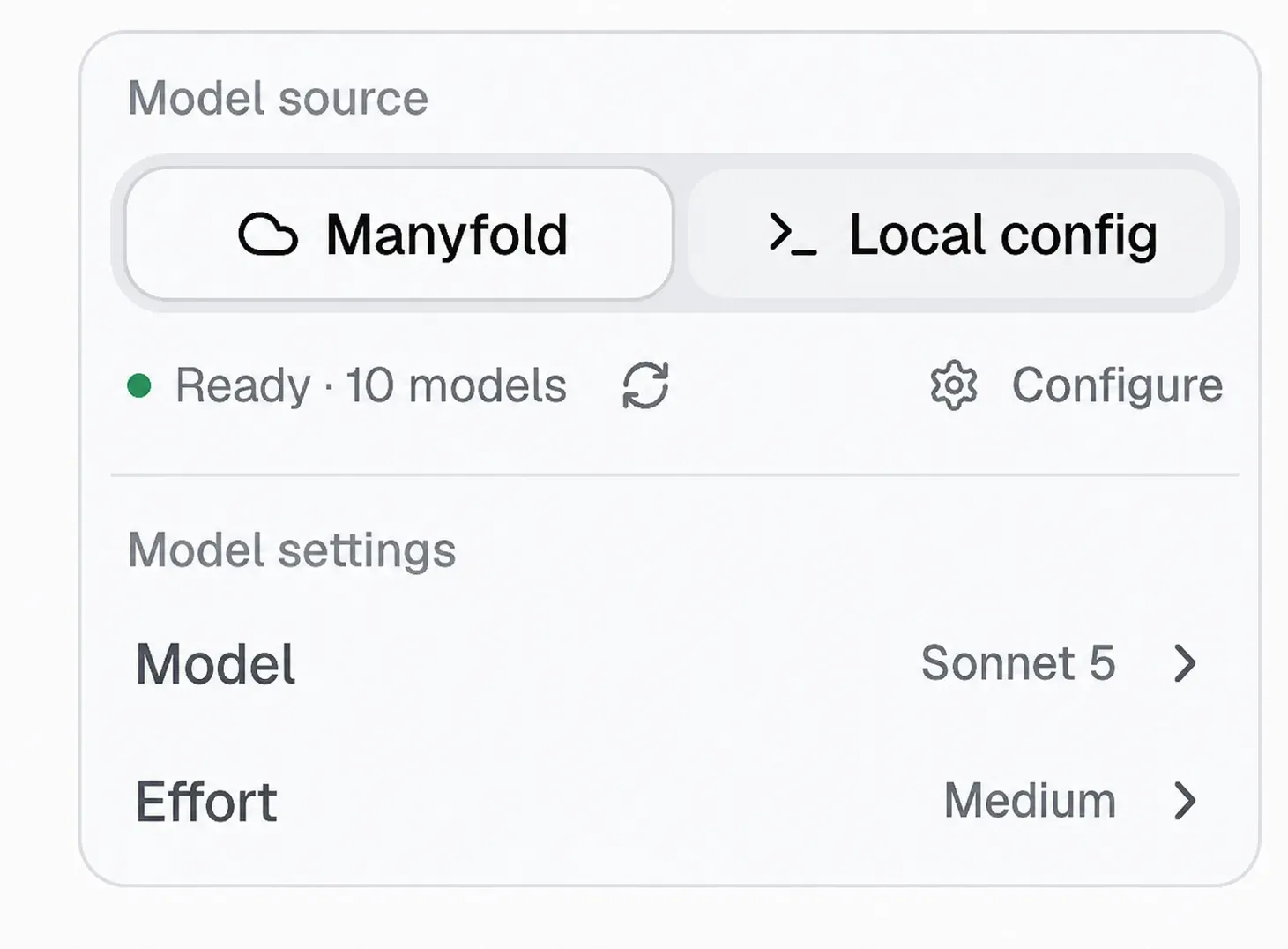
The Manyfold source is useful for centrally managed team access.
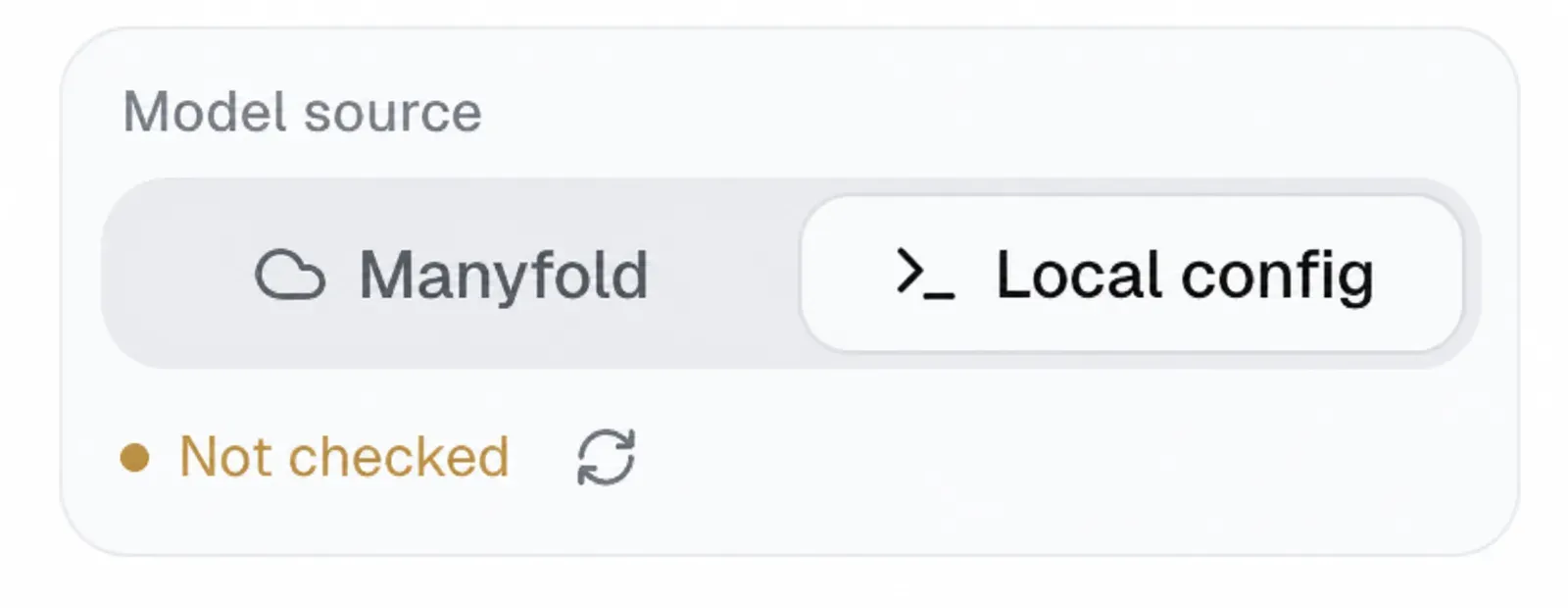
Local config uses available credentials for the selected local framework.
If Local config says Not checked, refresh its status and make sure the relevant Claude Code, Codex, Gemini CLI, Pi, or Antigravity CLI is installed and signed in on this computer. To use a team or personal API key, add, test, and save a provider in Model providers.
For Pi, Local config is whatever Pi itself can use on this computer: a sign-in from /login in pi (a Claude, ChatGPT or Copilot subscription, or an API key), a key in its models.json, or a vendor variable such as ANTHROPIC_API_KEY. With a provider picked instead, every turn uses that provider’s key and endpoint, a gateway included, and Pi’s own sign-in and models.json are never used for it; your Pi settings, skills and sessions apply either way. Pi’s find and grep tools run fd and ripgrep: Manyfold runs Pi offline, so it uses the ones on your PATH or the ones Pi fetched into ~/.pi/agent/bin when you ran it yourself — install them if you have neither.
For Antigravity CLI, Local config is the Google account you signed in with by running agy on this computer, or its API-key mode when its settings name the gemini provider and GEMINI_API_KEY is set for the Manyfold daemon. With a provider picked instead, every turn runs agy on that provider’s key without touching your own agy settings or sign-in; your conversations, skills and AGENTS.md apply either way.
Step 5: Create the agent and verify daemon health
Finish the remaining agent settings and create the agent. It will now work in the selected local workspace while remaining visible and manageable in the Manyfold team workspace.
mf daemon status
mf daemon logs
mf daemon doctor
On macOS and Linux, mf setup installs a user-scope autostart unit, so you generally do not need to keep Terminal open. On Windows, --foreground requires the process to stay running. An agent cannot receive new local work when the machine is powered off, asleep, or its daemon is stopped.
Not sure whether to use a sandbox or your own computer? Compare the two runtimes in Sandbox vs. self-owned computer.
Frequently asked questions
-
What is the difference between a self-owned computer and a sandbox?
A sandbox runs in Manyfold’s isolated cloud environment. A self-owned computer runs on a machine you control, so it can use local files, tools, and network access. Both can be used to create and manage Manyfold agents.
-
Can I use my own Codex or Claude Code subscription?
Yes. With Local config, Manyfold uses credentials that the selected local framework can access. Make sure its CLI is installed, working, and signed in. Subscription and API-key support can differ by framework. Sandboxes and cloud computers support this too: choose Use your own subscription when creating the agent, then sign in from its built-in terminal.
-
Does my computer need to stay on?
Yes. Whenever an agent needs to run on this computer, it must be powered on, online, and running the
mfdaemon. -
Can I connect more than one computer?
Yes. Each connected computer appears in the Where it runs list. Choose the machine that should run each agent.