Link a WhatsApp number to a Manyfold agent by scanning a QR code.
Connect WhatsApp when you want an agent to answer in WhatsApp direct messages and group chats. Manyfold links to your number the same way WhatsApp Web does: you scan a QR code with your phone, and Manyfold keeps the linked-device session running on its servers. No public webhook and no Meta Business account are required.
:::caution Linking runs through WhatsApp Web, which Meta does not officially support for automated use. Use a number you can dedicate to this agent — a separate SIM or eSIM — rather than your personal number. Meta may ban a number it judges to be automated, and a ban affects the number, not just this channel. :::
What the channel supports
| Capability | Support |
|---|---|
| Direct messages | Yes; every message sent to the linked number drives the agent. |
| Group chats | Yes; by default the agent only answers when mentioned or when someone replies to one of its messages. |
| Live progress | No; a linked device cannot reliably edit a delivered message, so the agent replies once the turn finishes. A typing indicator shows while it works. |
| Slash commands | Typed commands are supported; WhatsApp has no Manyfold-managed native command menu. |
| Files and media | Receives images and whitelisted document types; sends images and files the agent links. Voice notes and video arrive as a short placeholder. |
| Replies | Yes; a reply to one of the agent’s messages counts as addressing it, and the quoted message id reaches the agent. |
| Reactions | Yes; the triggering message is marked 👀 while the agent works, then ✅ or ❌. |
| Agent-initiated sends | Yes; address a phone number or a group jid. |
Prerequisites
- An existing Manyfold agent.
- A phone with WhatsApp installed, signed in to the number you want the agent to use.
Connect it to Manyfold
-
Open Settings -> Channels.
-
Create a channel and choose WhatsApp.
-
Select the agent and enter a label.
-
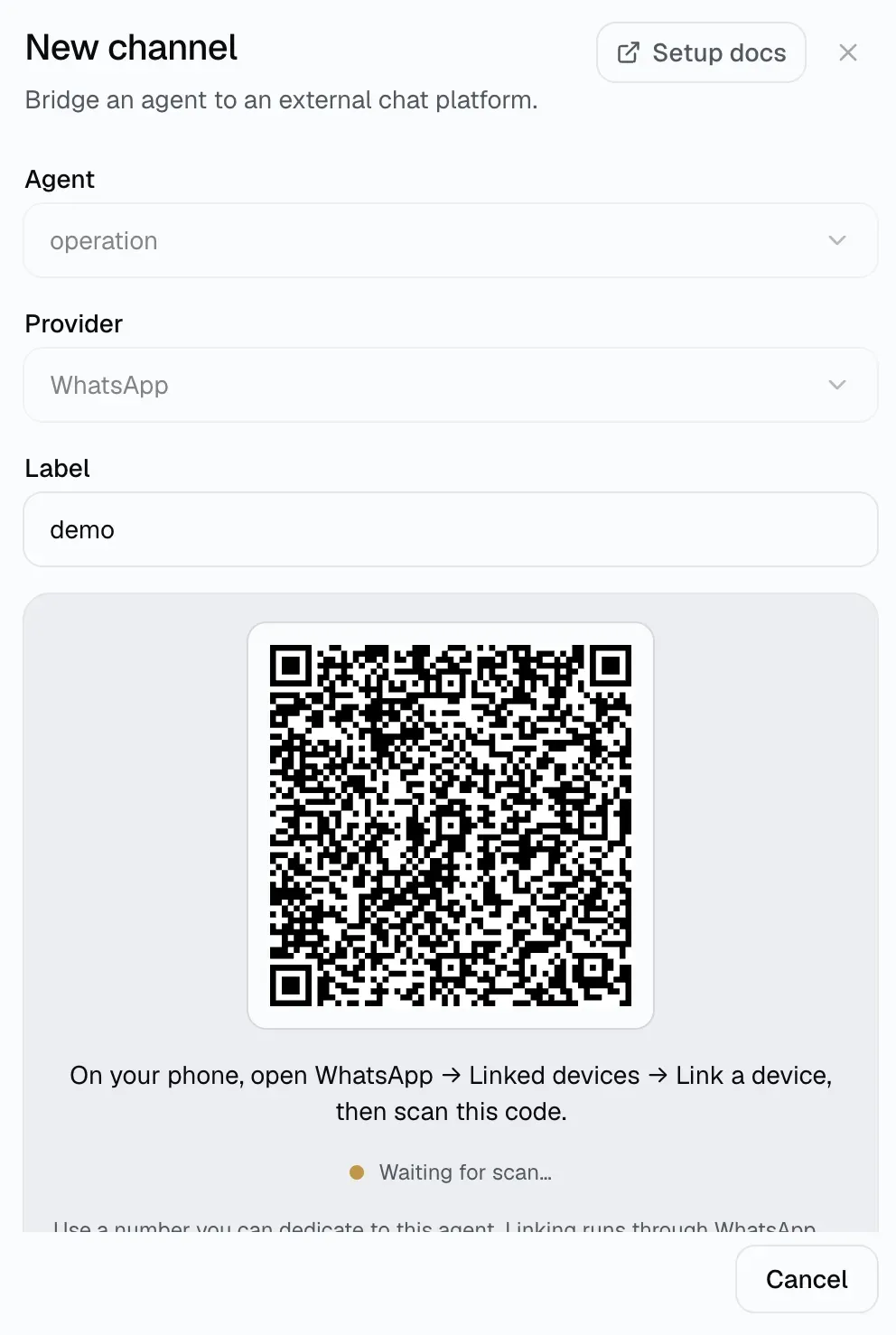
Select Generate QR code.
-
On your phone, open WhatsApp, go to Linked devices -> Link a device, and scan the code.
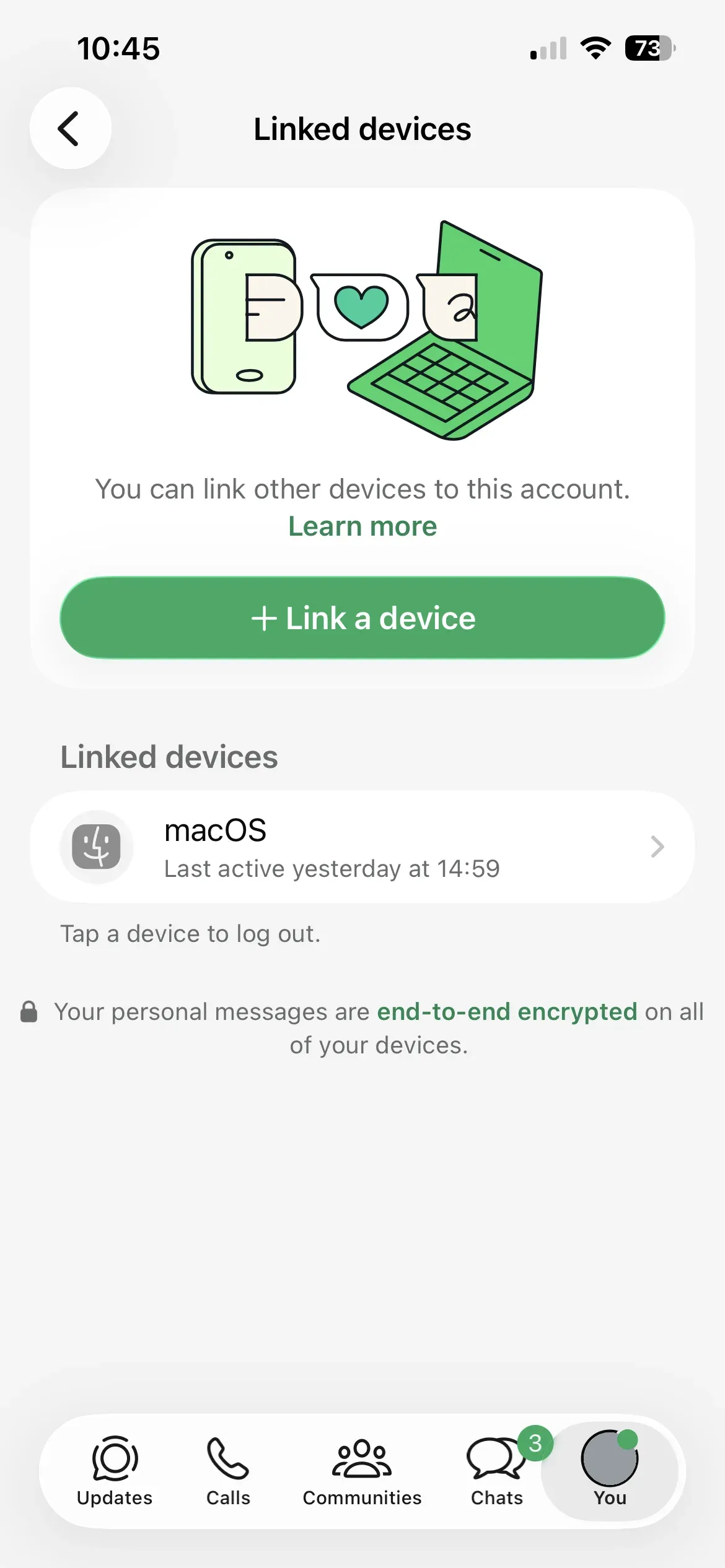
Manyfold creates the channel and activates it as soon as the phone confirms the link; there is no token to copy and no inbound URL to register. The QR code rotates every few seconds while you wait and the whole attempt expires after eight minutes — generate a new one if it lapses.
One WhatsApp number can back only one channel. Linking a number that is already connected fails with a clear message rather than silently moving the binding.
Access control
- Allowed users is an allowlist of senders, written either as a phone number (
+15551234567) or as a raw jid. Empty means anyone who messages the number is allowed. - Operator users control agent-level commands such as
/model. An empty operator list denies those commands for everyone (fail-closed). - Allowed group chats limits which groups the channel answers in, by group jid (
…@g.us). Empty means every group the linked number belongs to. - A sender’s jid appears in the channel’s delivery log the first time they message the number; copy it from there to build an allowlist.
Since WhatsApp’s move to per-chat identifiers, the same person can appear either as their phone number or as an opaque …@lid identity. A phone number in the allowlist matches the phone form; a …@lid entry only ever matches that exact identity.
Message behavior
- In group chats, Mention only is on by default: the agent answers when it is mentioned or when someone replies to one of its messages. Turn it off to answer every group message.
- Share session in channel decides whether a group has one shared conversation or one per sender. Off by default, so each participant gets their own thread of context.
- Long answers are split into chunks of about 4,000 characters, sent in order with a short pause between them. If a later chunk fails after earlier ones were delivered, the channel appends a short truncation notice rather than resending text the reader already saw.
- Inbound images and whitelisted document types are downloaded, decrypted, and passed to the agent as attachments. Voice notes and video arrive as a short placeholder because those formats are outside the attachment policy.
- When the agent links a workspace file in its reply, images are sent as images and other files as documents. The link itself reads as its label in the text reply, since the file follows it.
- Your own outgoing messages, status updates, newsletters, and broadcasts never drive the agent.
Agent-initiated sends
The agent bound to an active WhatsApp channel can reach out first with mf channels send. A human token can use the same command when it owns the channel and has channels:edit.
mf channels send <channelId> --user-id '+15551234567' --text 'Your build finished.'Use --chat-id with a group jid to post in a group. WhatsApp has no reply-to target for agent-initiated sends.
Settings
| Setting | Recommendation |
|---|---|
| Allowed users | Use an allowlist for a private deployment. Empty allows anyone who messages the number. |
| Operator users | Add the senders allowed to run agent-level commands. Empty denies those commands for everyone. |
| Allowed group chats | Restrict the channel to specific groups. Empty answers in every group the number belongs to. |
| Mention only | Keep on in busy groups so the agent answers only when addressed. |
| Share session in channel | Turn on when a group should share one conversation instead of one per sender. |
| Attach files the agent links | Keep on to upload files linked by the final agent answer; turn off for text-only output. |
| Send message context | Keep on so the agent receives the sender and message IDs. |
Verify
Run Test. A healthy result reports the linked number and confirms the channel is active and the connection is live. Then message the number from another phone and check that the agent answers.
Troubleshooting
- The channel reports “logged out”: the linked device was removed from the phone, either by you under Linked devices or by WhatsApp. The stored session cannot be revived — delete the channel and connect a new one by scanning again.
- The QR code expires before you scan: generate a new one. Each attempt allows a few QR rotations and then lapses after eight minutes.
- Linking fails with “already connected”: that number already backs another channel. Delete the existing channel first, or link a different number.
- The agent ignores a group message: confirm the group is in Allowed group chats (or leave it empty), and either mention the agent or turn Mention only off.
- The agent ignores a sender: confirm the sender is in Allowed users (or leave it empty). If the sender shows up as a
…@lididentity, add that identity verbatim. - An agent-level command is denied: add the sender to Operator users.
- The channel keeps reconnecting: WhatsApp drops linked devices routinely; Manyfold reconnects with a backoff. Persistent failures usually mean the phone has been offline for a long stretch — open WhatsApp on it.