iMessage
Connect iMessage to a Manyfold agent through a BlueBubbles server on your own Mac.
Connect iMessage when you want an agent reachable from the Messages app, in one-on-one conversations and in group chats. Apple publishes no iMessage API, so this channel talks to BlueBubbles Server, which you run on a Mac that is signed in to iMessage. Manyfold registers its inbound webhook on that server and sends replies back through its REST API.
This is the one channel that needs hardware you own. Read Limits and security before you set it up. The trust model is weaker than every other Manyfold channel, and that is a property of what BlueBubbles can and cannot do, not something configuration fixes.
What the channel supports
| Capability | Support |
|---|---|
| One-on-one conversations | Yes; every message reaches the agent. |
| Group chats | Yes; messages must start with a wake word by default. |
| Mention detection | Wake words only. iMessage has no bot identity to @-mention. |
| Slash commands | Yes as typed text; Messages has no command menu. |
| Live progress | No; iMessage cannot edit a sent message, so the agent posts only the finished reply. |
| Typing indicator | No. |
| Reactions as status | No. |
| Incoming files and media | Yes; attachments are downloaded and attached to the turn. |
| Files in a normal Agent reply | Yes; sent as iMessage attachments. |
| Agent-initiated sends | Yes, to an existing conversation or a handle that already has one. |
| Markdown | No; replies are flattened to plain text, one bubble per paragraph. |
Before you start
You need:
- A Mac signed in to iMessage that stays awake and online. It has to stay powered on and connected for as long as the channel is in use, because a laptop that sleeps will stop delivering messages. See Limits and security.
- BlueBubbles Server installed on it, with a server password set.
- A public URL for that server. Manyfold runs in the cloud and has to reach your Mac. BlueBubbles’ built-in Cloudflare proxy gives you one during setup, so you do not have to run a tunnel yourself.
Set up BlueBubbles Server
-
Install BlueBubbles Server on the Mac and complete its setup, including granting Full Disk Access when prompted.
-
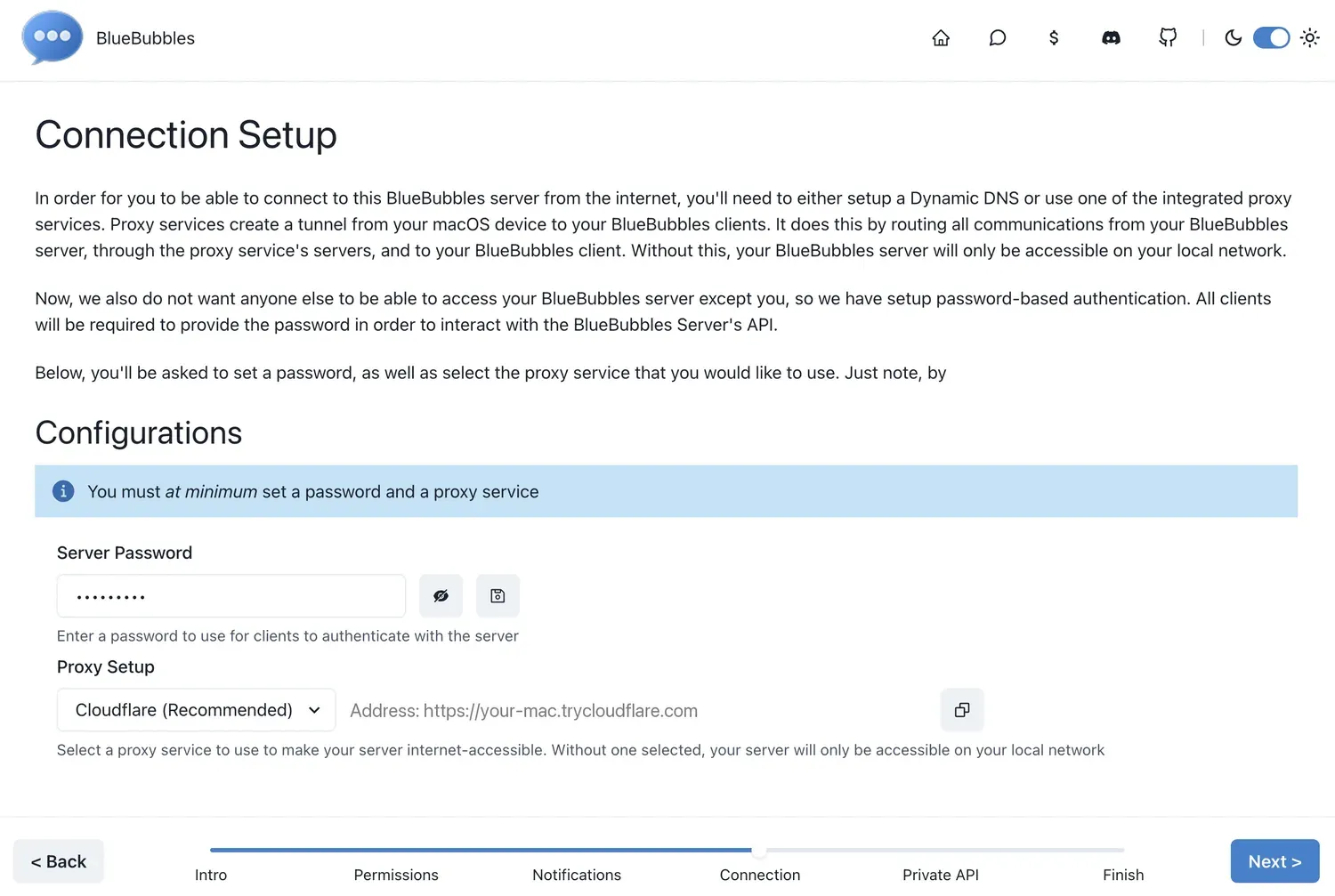
Set a server password (keep a copy, you have to paste it into Manyfold later) and choose Cloudflare under Proxy Setup. The password is what Manyfold authenticates with; the proxy is what makes the server reachable from outside your own network.
-
Under Permissions, enable Messages Private API.

The checkbox only tells the server to use the helper; installing the helper on that Mac is a separate step. See The Private API helper for what it adds and what it costs.
-
On the final setup step, set Auto Start Method to Do Not Auto Start and turn on Keep macOS Awake.
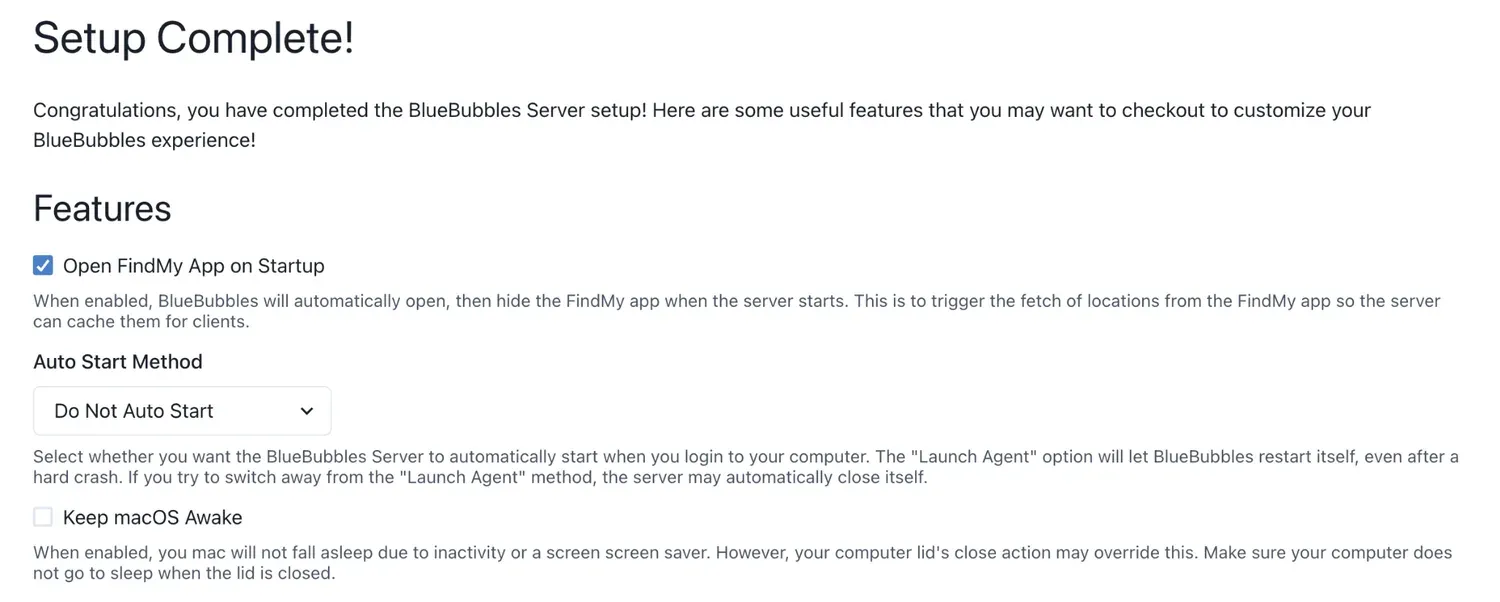
Keep macOS Awake only stops the Mac sleeping when idle; it does not survive a reboot or a closed lid. With Do Not Auto Start, BlueBubbles does not come back by itself after the Mac restarts, so you have to launch it again. The Mac has to stay powered on and online, with BlueBubbles running, or nothing is delivered.
-
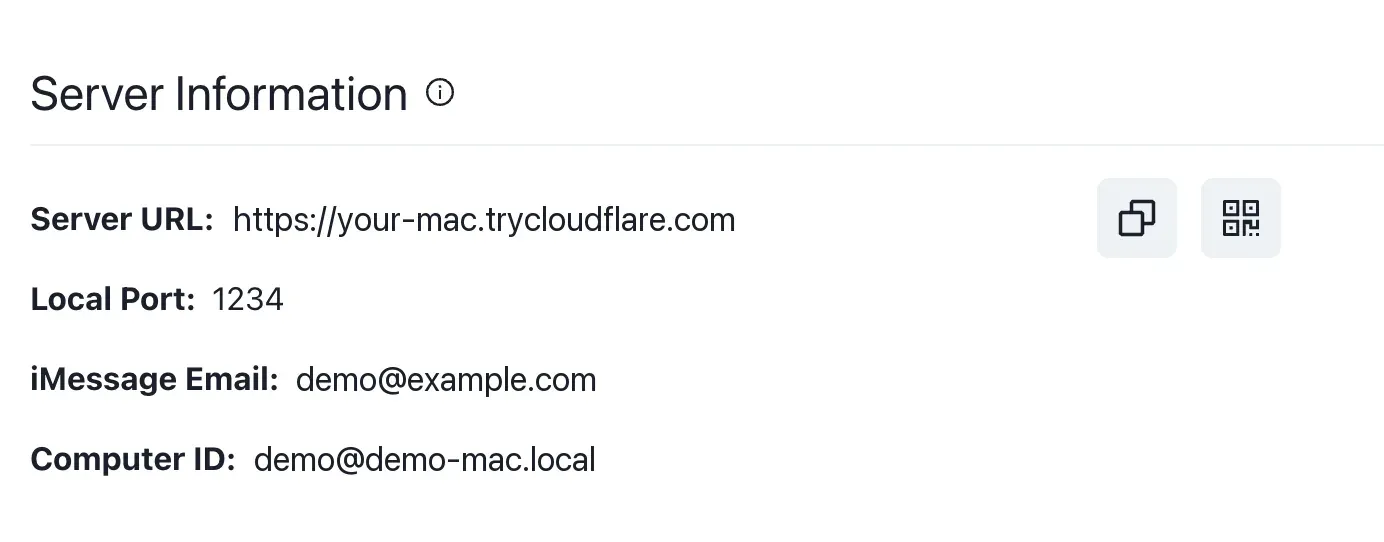
Once the server is running, open Server Information and copy the Server URL. Keep it: this is the address you give Manyfold.
Connect it to Manyfold
-
In Manyfold, create a channel with provider iMessage. Paste the BlueBubbles server URL and server password, set at least one wake word (for example
hey manyfold), then click Create.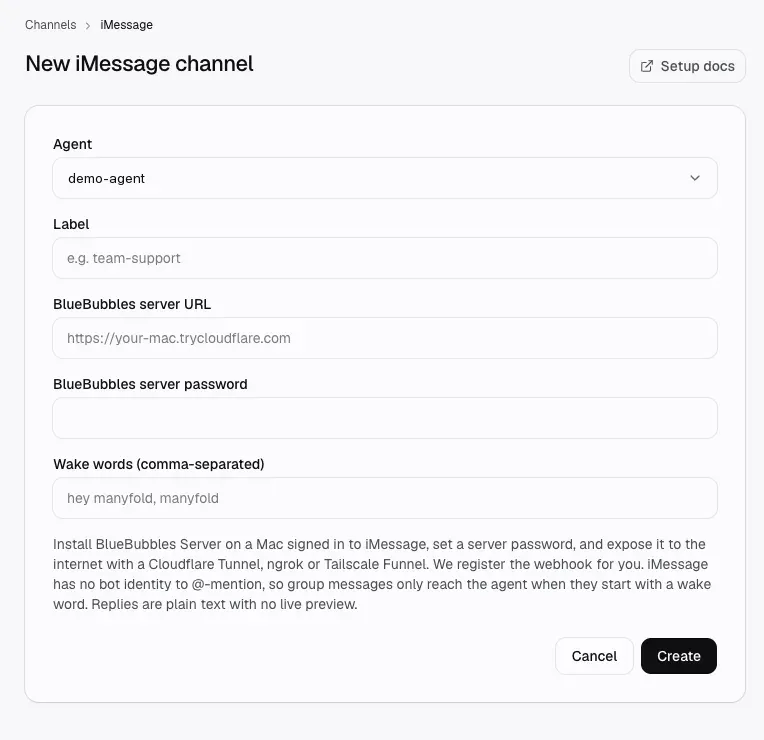
Manyfold pings the server, reads its version, and registers its own webhook, so you never paste a URL into BlueBubbles yourself.
-
Run Test; every line should be a
✓. Then send a message from iMessage and check that the agent answers.
Wake words
iMessage has no bot account, so there is nothing for a group member to @-mention. Group messages therefore reach the agent only when they begin with one of the channel’s wake words, which is then stripped before the agent sees the message:
hey manyfold what did we ship this week?
becomes what did we ship this week?.
Wake words are matched case-insensitively at a word boundary, so manyfold does not match manyfoldish. They are always literal text; regular expressions are not accepted. One-on-one conversations ignore wake words entirely; every message is a turn.
Who can use it
Leave allowed handles empty and anyone who can message that Mac can drive the agent. Fill it in to restrict. Handles are phone numbers or email addresses; formatting is ignored when matching, so +1 (555) 555-0123 and +15555550123 are the same person.
Operators may run agent-wide commands such as /model. With no operators, those commands are disabled from iMessage.
Allowed chat GUIDs restrict which group conversations the agent answers in. A chat GUID looks like iMessage;+;chat123456789. A blocked chat stays blocked even for an operator.
The Private API helper
BlueBubbles ships an optional Private API helper that unlocks features Apple does not expose. Manyfold detects whether it is connected and reports it in Test.
Everything this channel does (sending, receiving, attachments in both directions) works without it. The single thing that needs it is starting a brand-new conversation with a handle that has never messaged this Mac. Without the helper, an agent-initiated send to an unknown number fails with a clear error instead.
Installing the helper requires disabling System Integrity Protection on that Mac. That is a real security decision about your own machine. Enabling Messages Private API during setup only switches the feature on in BlueBubbles. If you leave the helper uninstalled, everything above still works and only an agent-initiated send to a brand-new handle fails.
Limits and security
The webhook secret is a bearer capability. BlueBubbles cannot send custom headers and cannot sign its payloads, so Manyfold authenticates inbound messages with a per-channel secret embedded in the registered webhook URL. That URL is visible in the BlueBubbles webhook list, in your Mac’s logs, and in your tunnel provider’s request log. Anyone who can read it can send messages to this agent, and because the sender is read from the message body, they can make it look like it came from an allowed handle. The allowed-handles list is not a second factor. Treat the registered URL as a password.
Rotation means recreating the channel. Re-registering deliberately reuses the existing secret so it cannot orphan the URL BlueBubbles already holds. To invalidate a leaked URL, change the server password (which re-registers with a fresh secret) or delete and recreate the channel.
Use HTTPS. The server password and the webhook secret both travel in query strings, because that is the only authentication BlueBubbles accepts. Over plain http:// they are readable in transit. Test warns when the server URL is not HTTPS.
One server, one channel. BlueBubbles webhooks are per-server, not per-conversation. Two Manyfold channels pointed at the same Mac will both receive every message and both reply. Use allowed chat GUIDs to separate them, or run one channel per Mac.
The channel can look healthy while the Mac is asleep. Inbound arrives as an ordinary webhook, so Manyfold has no live connection to monitor. If the Mac sleeps or loses its tunnel, the channel still reads active while nothing is delivered. If replies stop, run Test, which is the authoritative check. On the Mac, prevent sleep with Energy Saver or caffeinate -s.
Edited messages do not reach the agent. iMessage delivers an edit as an update to the same message, which Manyfold’s duplicate protection discards. Send a new message instead.
Phone numbers are stored. Sender handles are written to session names and delivery records, and the raw message payload is retained like every other channel’s. If that matters for the people in these conversations, take it into account before connecting.