Slack
Connect a Slack app to a Manyfold agent.
Connect Slack when you want an agent in direct messages, public or private channels, multiparty DMs, threads, or the Slack Assistant panel. Slack uses a signed webhook for events and native slash commands.
What the channel supports
| Capability | Support |
|---|---|
| DMs, channels, and threads | Yes; channels require an @mention by default. |
| Slack Assistant / DM threads | Yes; each thread can have an isolated session. |
| Native slash commands | Yes; replies to native commands are ephemeral. |
| Incoming files | Yes; file-only messages work too. |
| Agent-produced files | Yes; linked workspace files can be uploaded to the channel or thread. |
| Live progress | Yes; one message is updated while the agent works. |
| User and operator allowlists | Yes; Slack user IDs are checked before dispatch. |
Prerequisites
- An existing Manyfold agent.
- Permission to create and install a Slack app in the workspace.
- Permission to invite the app to each target channel.
Set up the Slack app
Manyfold can generate a manifest that configures the whole Slack app in one paste: Request URL, event subscriptions, bot scopes and every slash command. That manifest only exists once the channel has an inbound URL, and the channel cannot be created without a bot token — so the app is built in two passes. First a minimal app, just to get credentials out of Slack; then the full manifest applied back onto that same app.
-
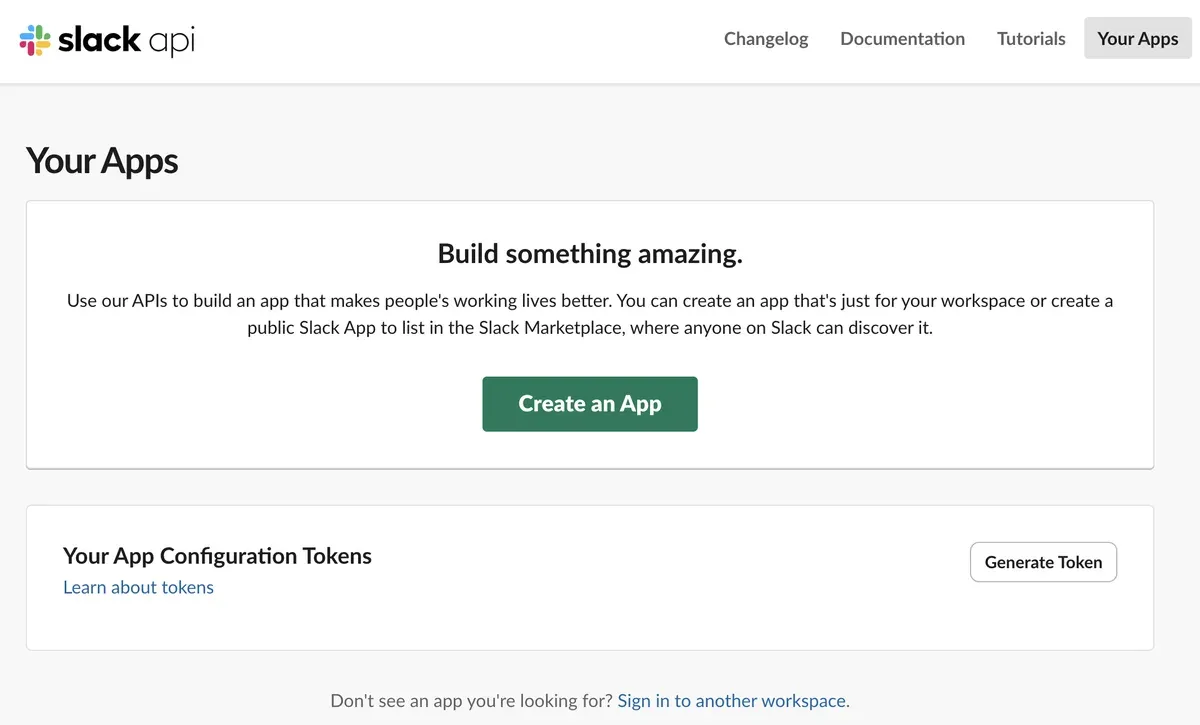
In Slack API Apps, choose Create an App.
-
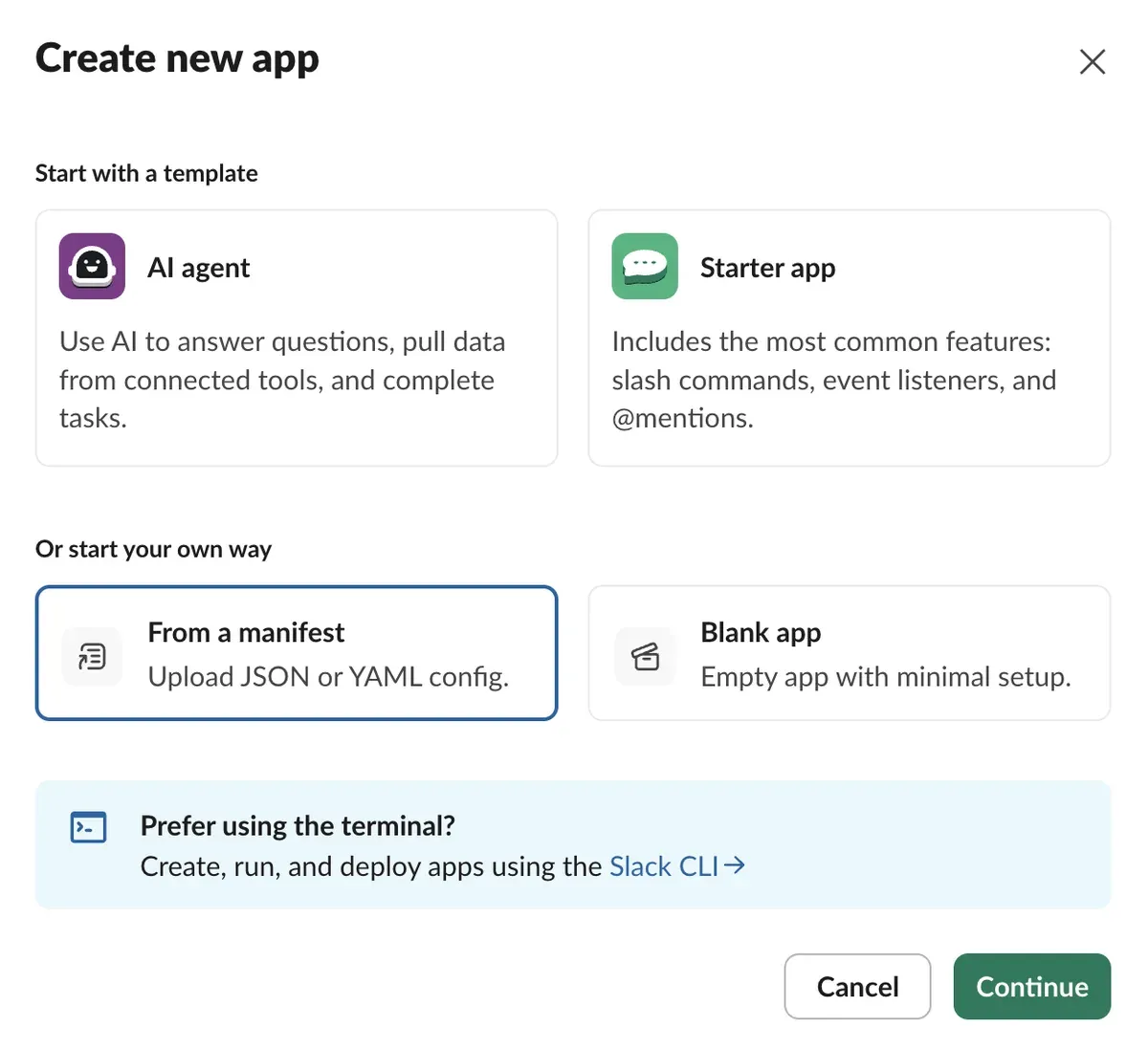
Choose From a manifest, select the workspace, and continue. There is nothing to paste yet; an empty app is all this first pass needs.
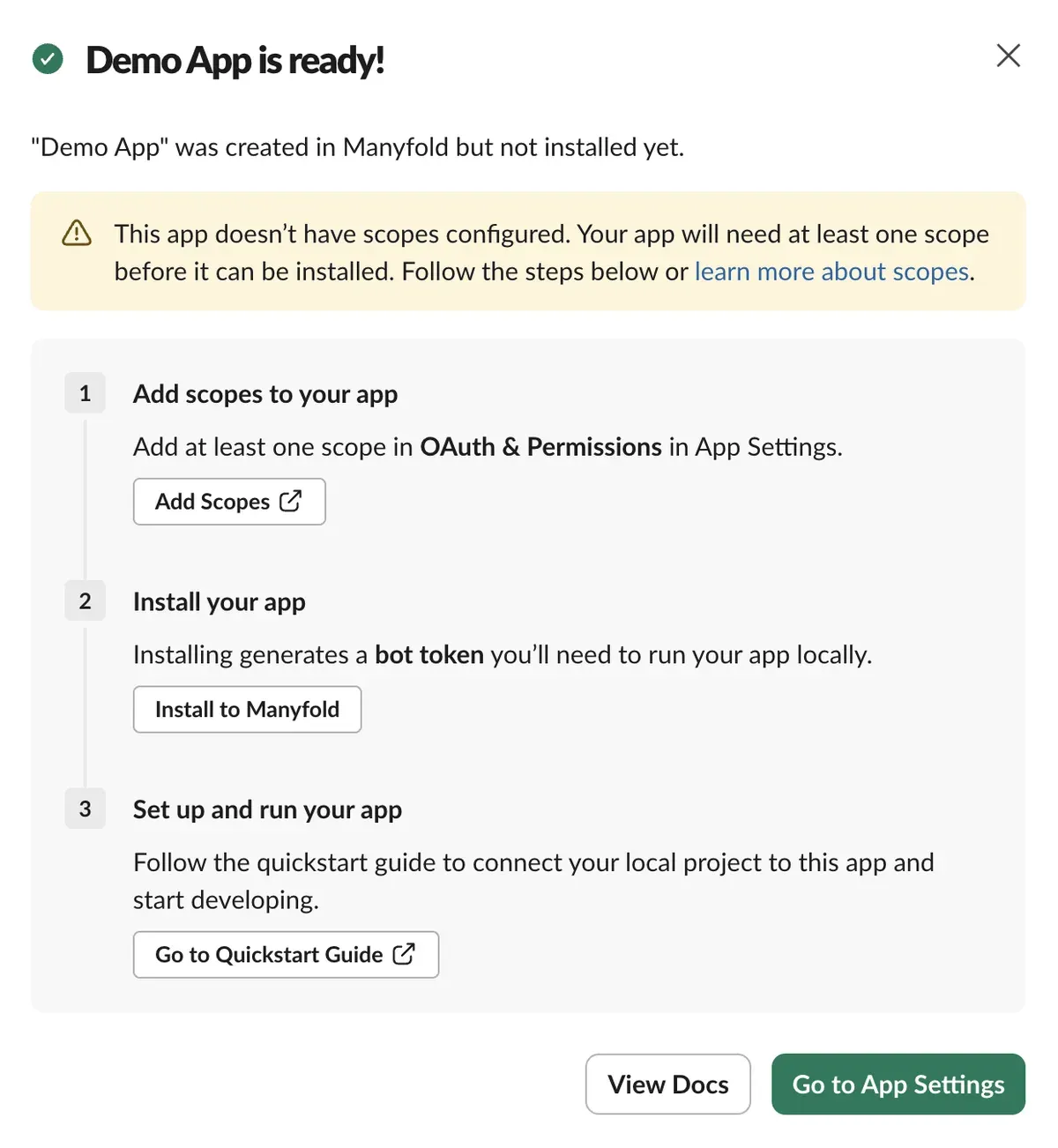
Slack creates the app with no scopes, so it cannot be installed yet.
-
Open OAuth & Permissions and add the bot token scopes.
app_mentions:read,chat:writeand a history scope for each conversation type you want are the minimum; the rest unlock commands and files.Scope Required for app_mentions:readReceiving @mentions in channels. channels:historyPublic channel message events. groups:historyPrivate channel message events. im:historyDirect-message events. mpim:historyMultiparty direct-message events. chat:writeReplies and live progress messages. commandsNative slash commands. files:readDownloading files users attach. files:writeUploading workspace files produced by the agent. 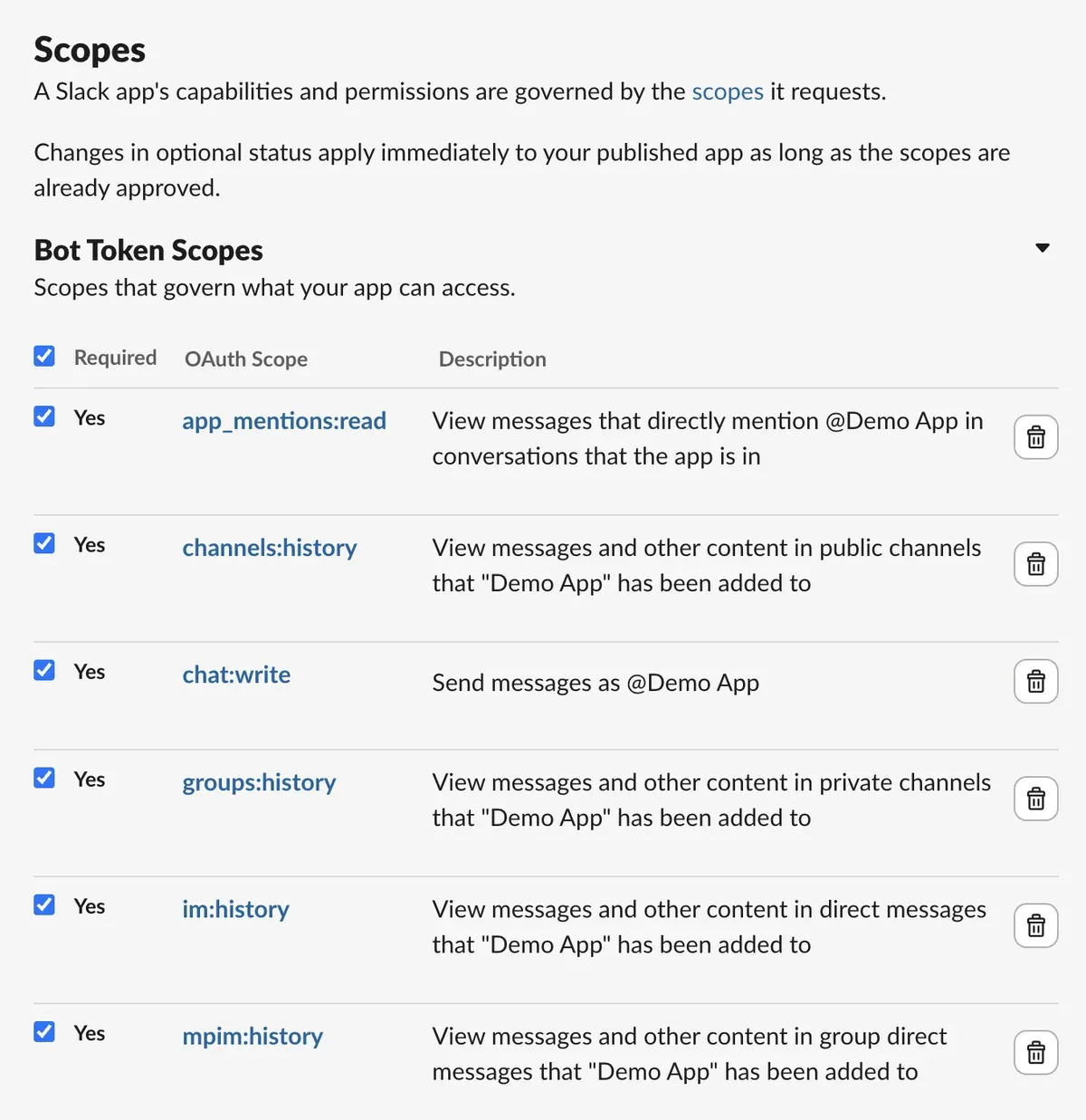
-
Still under OAuth & Permissions, install the app to the workspace.
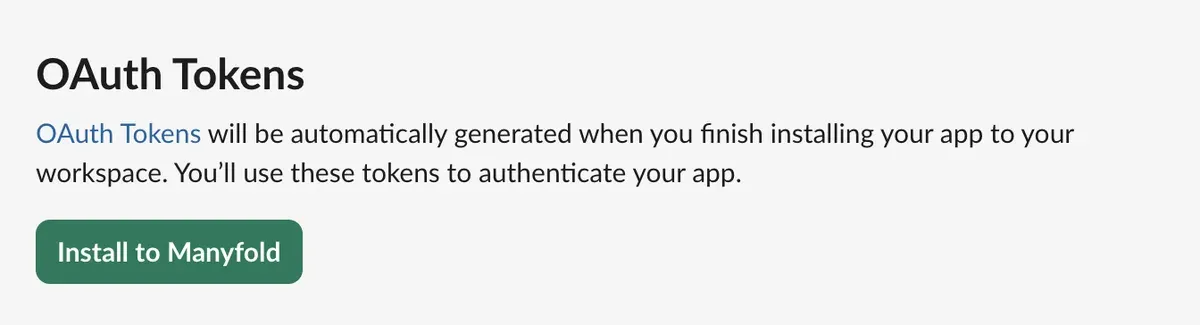
Copy the Bot User OAuth Token that appears afterwards. It starts with
xoxb-and it is a credential: anyone holding it can post as the bot, so keep it out of shared documents and screenshots.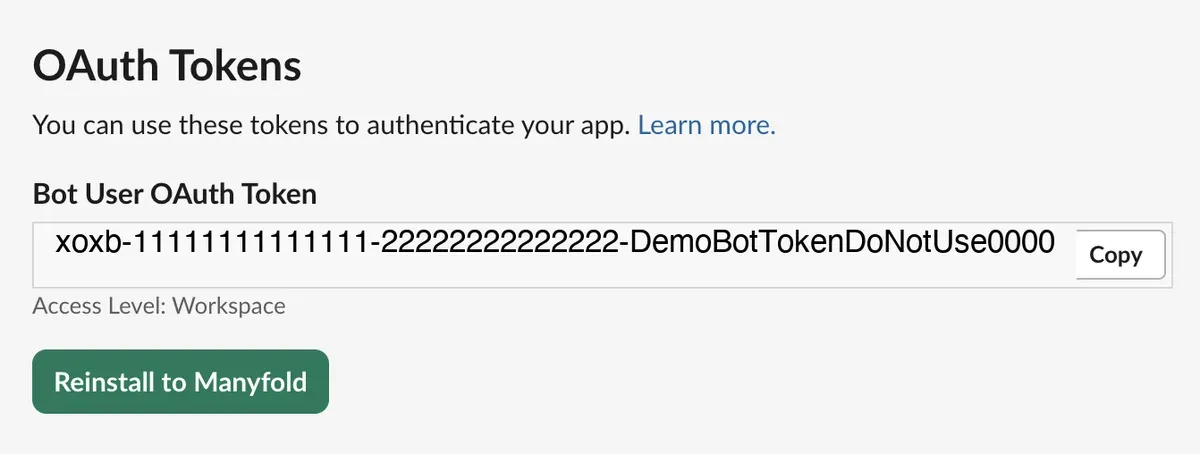
-
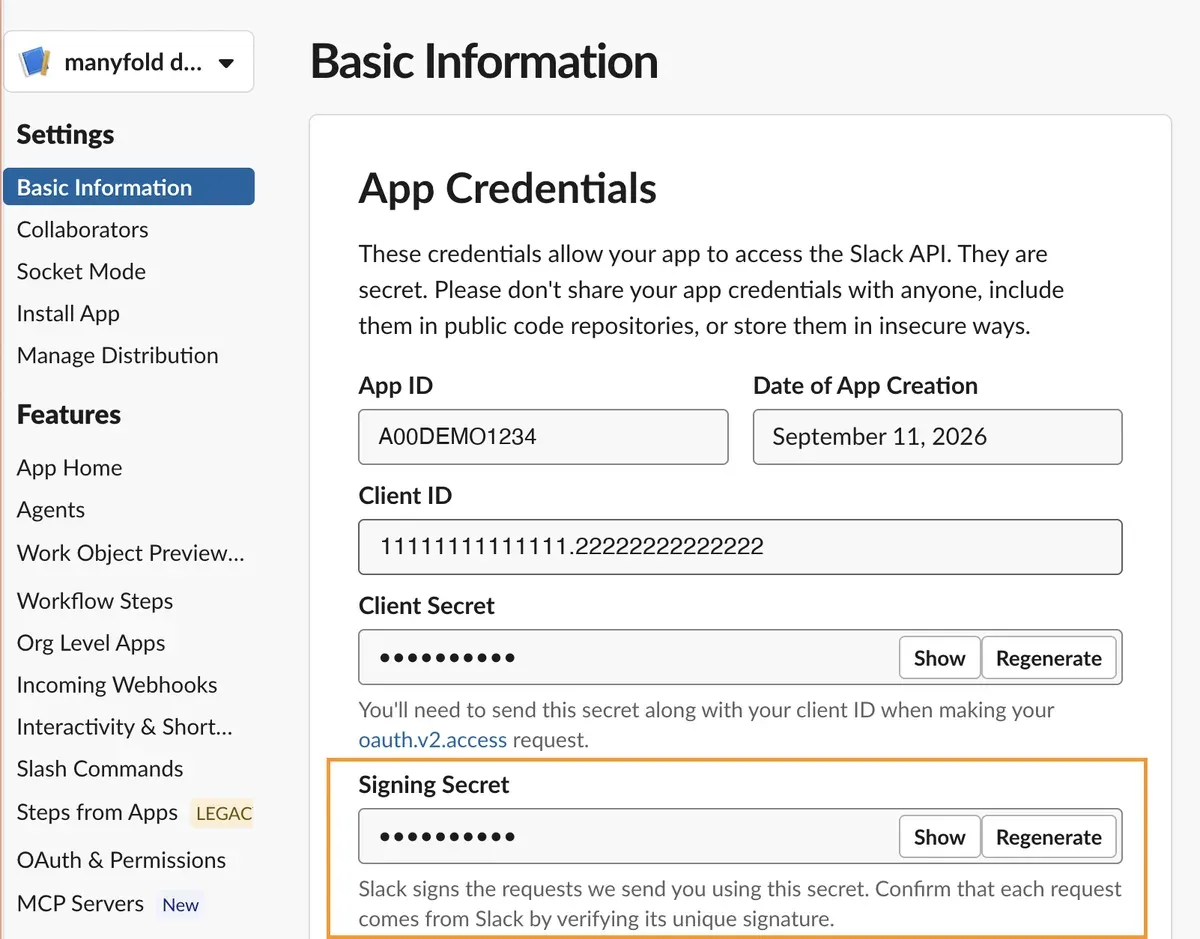
Open Basic Information, find Signing Secret under App Credentials, and press Show to copy it. Slack signs every request it sends with this secret, and Manyfold rejects anything it cannot verify.
Connect it to Manyfold
-
Open Settings -> Channels, create a channel, and choose Slack.
Field What to enter Where it comes from Agent The agent that should answer Already filled in if you started from the agent Label Any name that identifies this channel Your choice Bot token The xoxb-stringSlack, OAuth & Permissions Signing secret The signing secret Slack, Basic Information -> App Credentials Allowed user IDs Optional. Empty lets anyone in the workspace use the bot — Operator user IDs Optional. Who may run agent-wide commands such as /model; empty disables them— 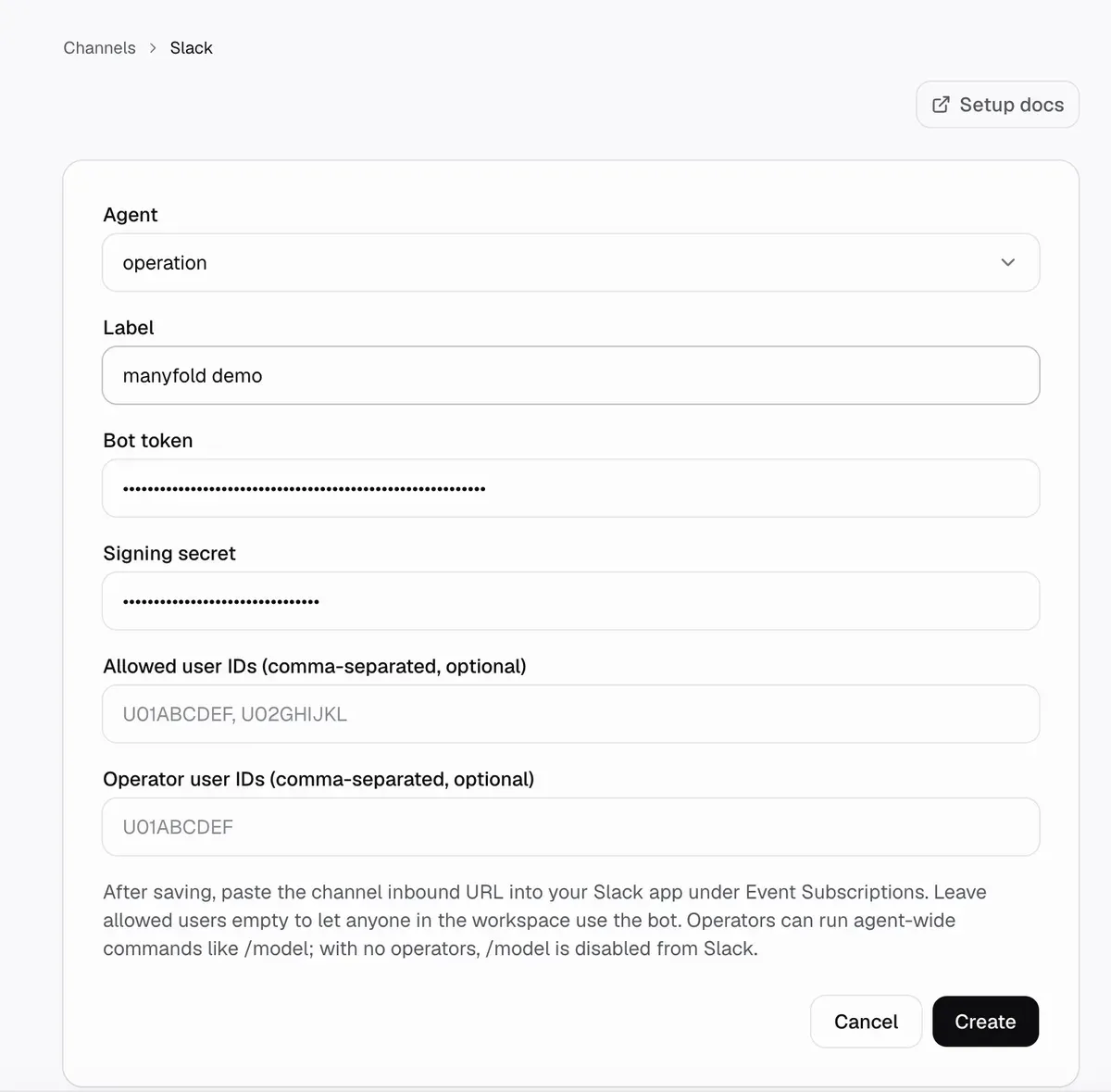
-
Create the channel, then run Register. Registration calls
auth.testand stores the bot user and workspace IDs. -
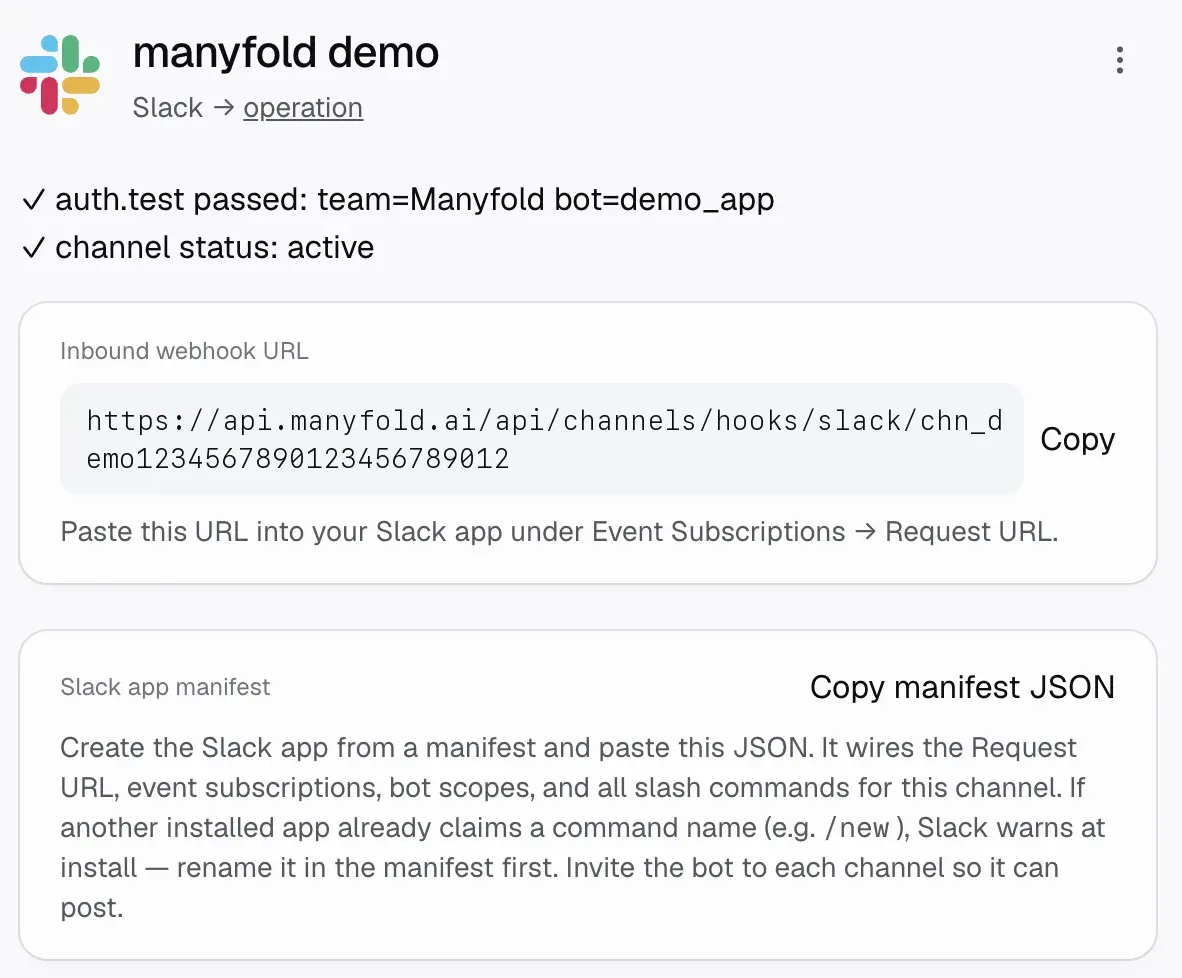
On the channel page, choose Copy manifest JSON. The same page shows the channel’s inbound webhook URL, which the manifest already points at.
-
Back in the Slack app, open App Manifest in the left-hand menu. Select the whole existing JSON, delete it, paste the manifest you copied, and save. Slack validates on save: if another installed app already owns a slash command name such as
/new, rename that command in the manifest and save again.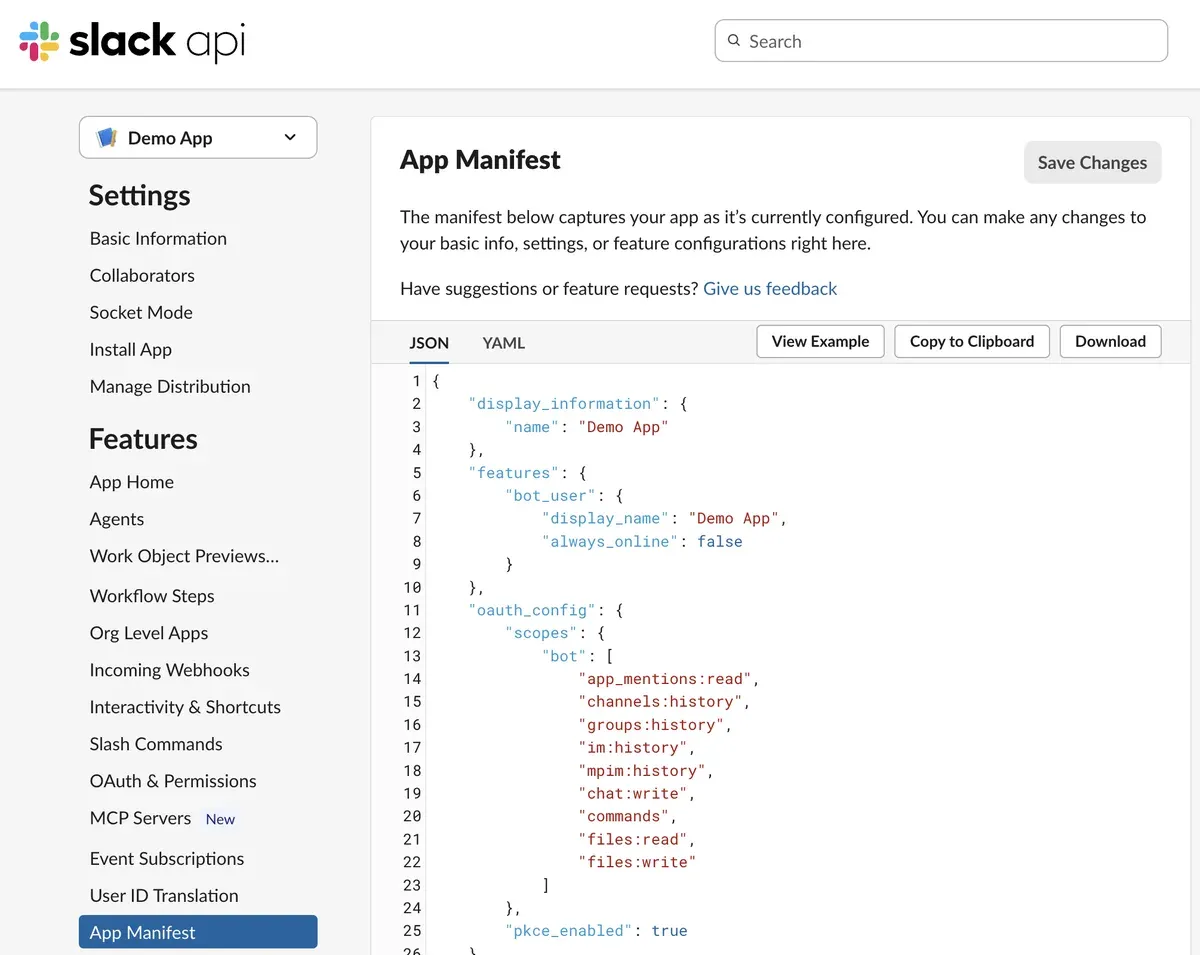
The manifest subscribes the bot to these events:
Bot event Required for app_mentionExplicit @mentions in channels. message.channelsPublic channel messages, including file shares. message.groupsPrivate channel messages. message.imDirect messages and Assistant conversations. message.mpimMultiparty direct messages. -
Go back to OAuth & Permissions and reinstall the app. Scope and slash-command changes only take effect on reinstall. The token is unchanged, so nothing needs updating in Manyfold.
-
Run Test on the channel.
Messages from a workspace other than the registered one are rejected, so register again after moving or reinstalling the app in another workspace.
Messages and files
- Text and Slack file shares can drive the agent; a file-only message is accepted.
- Incoming files use Slack’s authenticated download URLs. Manyfold accepts up to 10 files, 25 MB per file, and 100 MB total per message; unsupported or oversized files are skipped while the remaining message continues.
- When Attach files the agent links is on, a workspace file linked in the final answer is uploaded to the same channel or thread. The link itself reads as its label in the text reply, since the file follows it.
- Long replies are split into chunks. Continuation chunks stay in the active Slack thread.
- Slack markdown links and basic emphasis are rendered in Slack’s native format.
File input still depends on the selected agent framework supporting attachments.
Threads and commands
- With Thread isolation on, each channel thread, Assistant conversation, or manual DM thread maps to its own session. Plain DMs keep one flat session per user.
- Auto-thread answers a top-level channel mention in a new thread rooted at that message. It requires thread isolation and does not apply to DMs or slash commands.
- Native slash commands use Slack’s command payload and return a private ephemeral response. Slack’s slash-command composer does not include thread context, so native commands operate on the channel-level scope rather than the open thread.
- Typed commands still use the normal message flow. See Session switching for the full command list.
Settings
| Setting | Recommendation |
|---|---|
| Mention only | Keep on for channels. DMs remain available without mentions. |
| Shared session | Keep off for per-user channel context; enable only for a deliberately shared team conversation. |
| Thread isolation | Keep on so Slack threads remain separate sessions. |
| Auto-thread | Enable when top-level mentions should move into a thread automatically. |
| Progress mode | Preview edits one live message; Activity includes tool/thinking activity; Final sends only the answer. |
| Attach files the agent links | Keep on if users should receive generated workspace files in Slack. |
| Send message context | Keep on so the agent receives sender, workspace/channel, thread, and message IDs. |
Access control
| Setting | Effect |
|---|---|
| Allowed user IDs | If non-empty, only these Slack users and configured operators may use the bot. Empty allows anyone the app can reach in its registered workspace. |
| Operator user IDs | Users allowed to run agent-wide commands such as /model. Empty disables those commands from Slack. |
Find a Slack user ID from the member profile’s three-dot menu with Copy member ID. Operators automatically have chat permission. Slack identities are external actors and are not linked to Manyfold accounts.
Verify
Run Test to verify the token with auth.test and confirm the channel is active. Then:
-
DM the app.
-
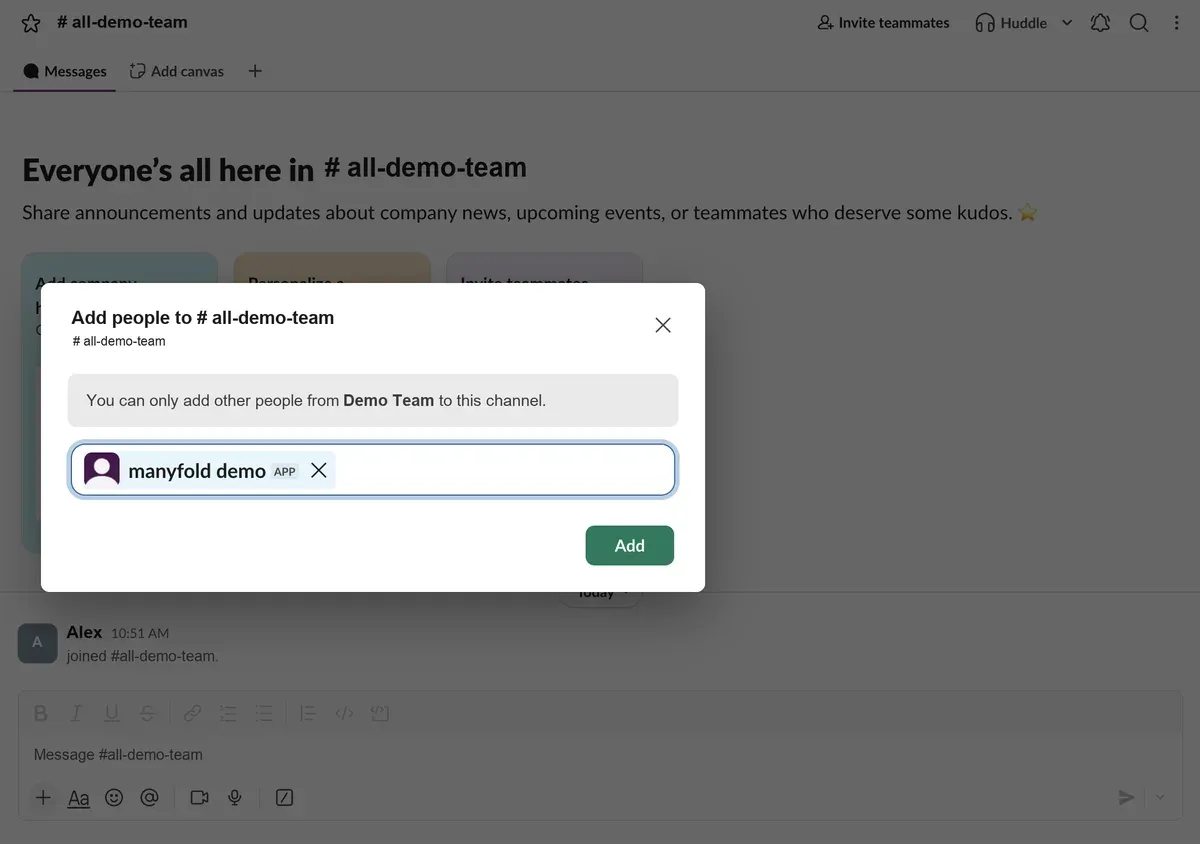
Invite it to a channel and @mention it. Open the channel, choose Add people, and pick the app by name.
-
Run
/helpfrom Slack’s command menu. -
Upload a small file if file input is required.
Troubleshooting
- Request URL verification fails: confirm the signing secret and use the current inbound URL from Manyfold.
- Bot ignores DMs or a channel type: add the corresponding
message.*event and history scope, then reinstall the app. - Bot receives a channel message but cannot reply: invite it to the channel and confirm
chat:write. - Slash command is missing or returns to the wrong app: add
commands, create the command with this channel’s URL, and resolve any workspace-wide name conflict. - Scope or event changes do not apply: reinstall the Slack app.
- File input fails: confirm
files:read; for output confirmfiles:writeand Attach files the agent links. - Users are silently ignored: check Allowed user IDs and confirm the app is still installed in the workspace recorded by the channel.
- Replies appear in the wrong scope: check Thread isolation, Auto-thread, and Share session in channel.