Lark and Feishu
Connect a Lark or Feishu custom app to a Manyfold agent.
Connect Lark or Feishu when you want an agent available from private chats, groups, or team workflows. Choose the platform that matches the Open Platform console where the app was created: Feishu for open.feishu.cn, or Lark for open.larksuite.com.
What the channel supports
| Capability | Support |
|---|---|
| Private chats, groups, and message threads | Yes; groups require an @mention by default. |
| Webhook and long connection | Both; long connection needs no public callback URL. |
| Text, rich text, images, and files | Yes; voice/video arrive as placeholders, with a video cover when available. |
| Native replies and recent-history context | Yes; group replies can reference the trigger and mentions can backfill recent discussion. |
| Session command cards | Yes; /list and related views can use interactive buttons. |
| Live cards and CardKit streaming | Yes; Patch works by default, CardKit adds native typewriter streaming. |
| User and operator allowlists | Yes; Lark/Feishu open_ids are checked before dispatch. |
| Agent-initiated text and files | Yes; mf channels send accepts chat/user/reply targets and explicit workspace files. |
Prerequisites
- An existing Manyfold agent.
- For quick create: permission to approve app creation when scanning the QR code.
- For manual setup: permission to create or manage a custom app in the Lark or Feishu Open Platform, with bot capability enabled.
Quick create by QR code (recommended)
Quick create asks the Open Platform to create and configure the bot, while keeping the resulting App Secret on the Manyfold server. Setup runs in two places: Manyfold generates the QR code, and the Lark or Feishu app on your phone is where you approve it and the app is actually created.
Manyfold set up
- Open Settings -> Channels, create a channel, and choose Feishu or Lark.
- Select the target agent, app region, label, and bot name.
- Keep Quick create selected and generate the QR code.
- Scan it with an account allowed to approve app creation, review the requested permissions, and approve. The account you scan with decides where the app is created: a Feishu account creates it on
open.feishu.cn, a Lark account onopen.larksuite.com. - Wait for Manyfold to create an active long-connection/WebSocket channel, then run Test and message the bot.
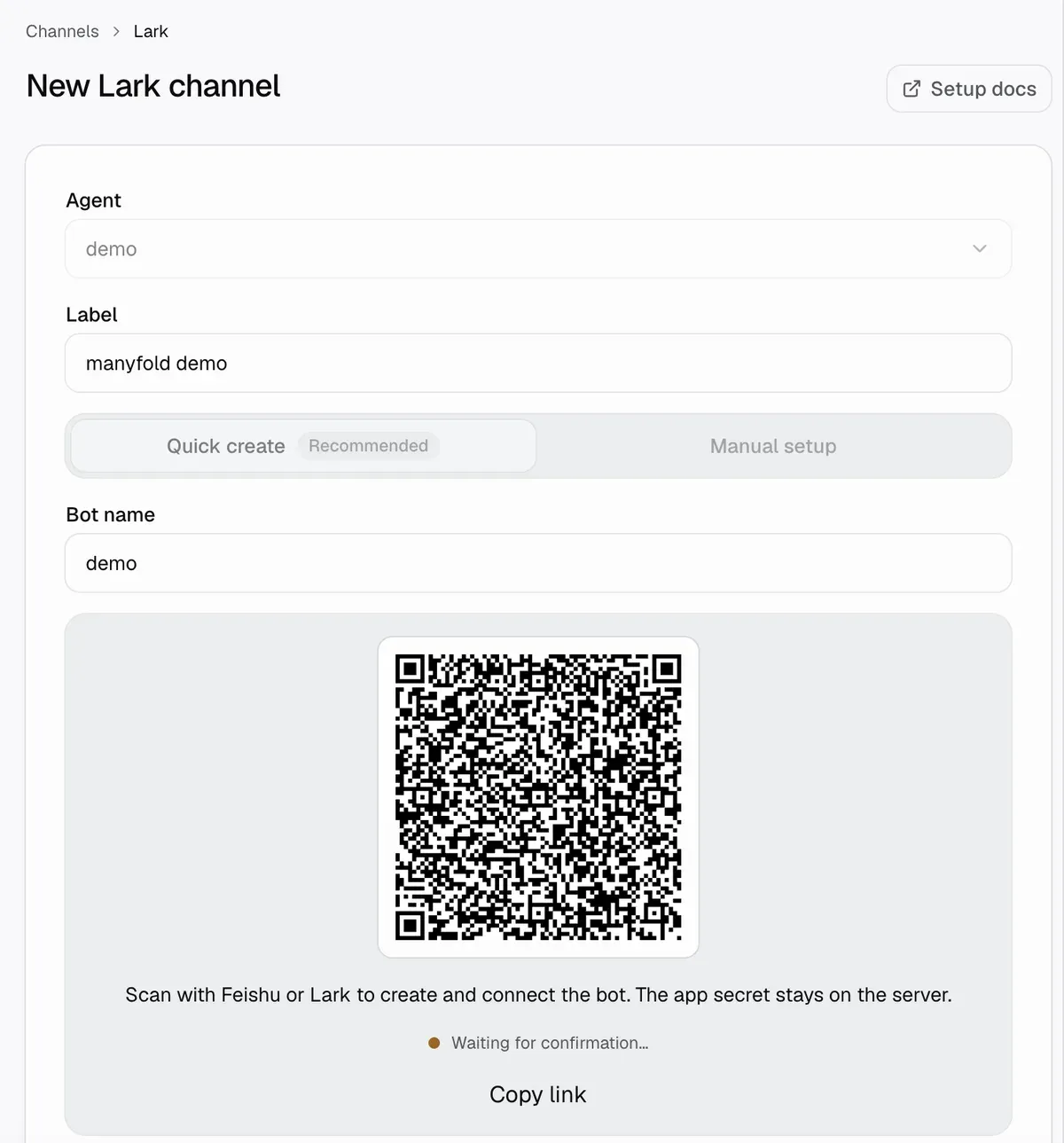
Lark (Feishu) set up
-
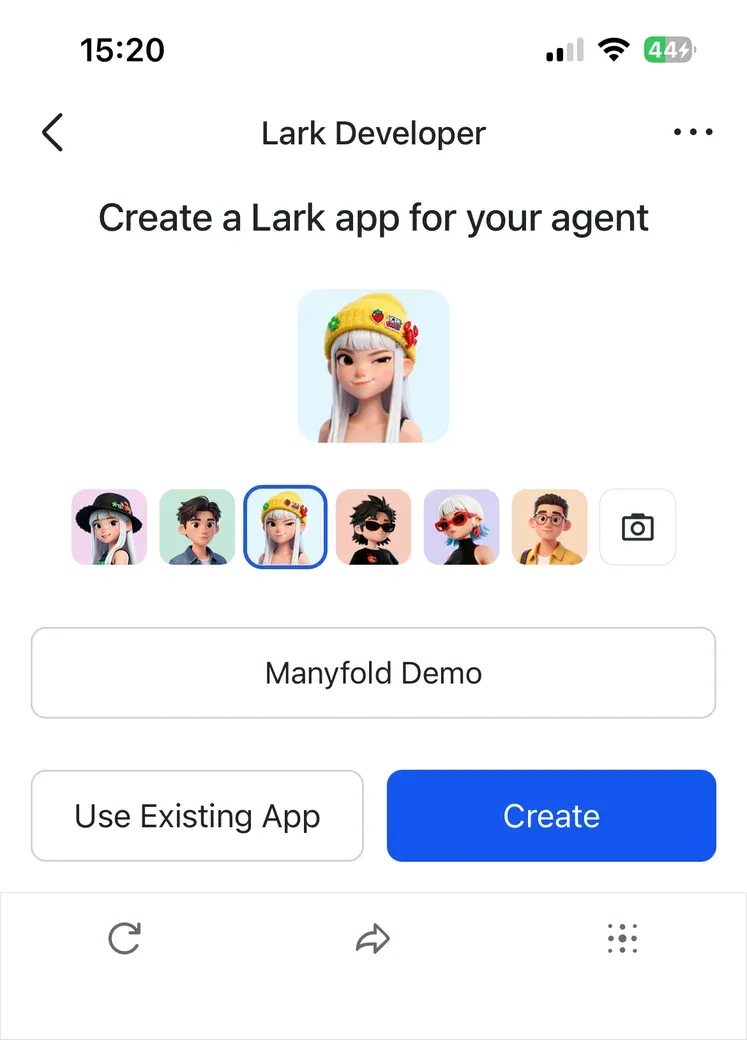
Scan the QR code with Lark or Feishu on your phone and follow the guide to create the app. Pick an avatar, confirm the name, and choose Create.
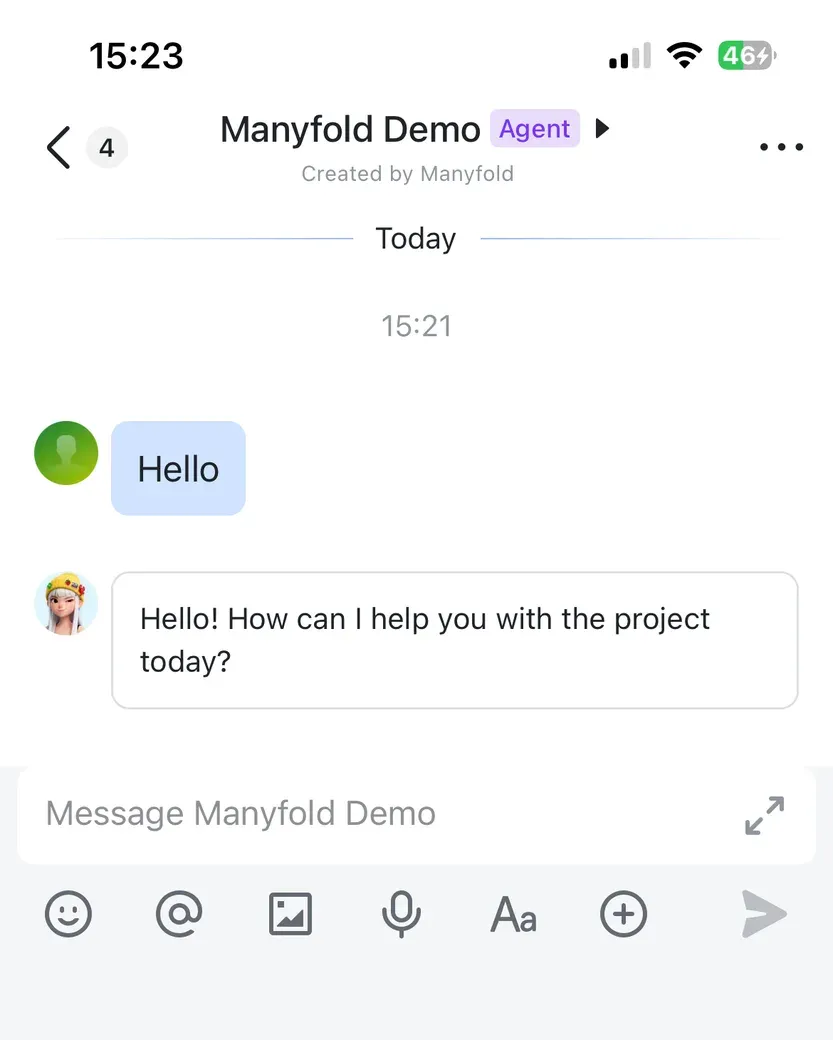
The bot shows up in Lark as soon as it is created, and answers straight away.
The scanner’s app-scoped open_id is added as an operator for agent-wide commands such as /model. The app does not need a separate version publish after this registration flow. Closing the dialog while it is waiting for a scan cancels that registration; a denied or expired code can be regenerated.
Quick create requests these nine tenant scopes so the generated channel supports the documented Lark/Feishu feature set:
| Scope ID | Used for |
|---|---|
im:message.p2p_msg:readonly | Receive private messages sent to the bot. |
im:message.group_at_msg:readonly | Receive group messages that @mention the bot. |
im:message:send_as_bot | Send agent replies and cards. |
im:resource | Download and upload message images/files. |
im:message:readonly | Read quoted messages and recent context. |
im:message.group_msg | Receive/read all group messages when needed. This is a sensitive permission; keep Mention only and disable history backfill if the bot should not use this access. |
im:message.reactions:write_only | Add and remove the temporary processing reaction. |
contact:user.base:readonly | Resolve sender display names. |
cardkit:card:write | Use CardKit typewriter streaming when selected. |
It also configures the im.message.receive_v1 event and card.action.trigger callback. The device code and App Secret are handled by the API and are never sent to the browser or returned by the registration endpoints.
Quick create always starts with a long connection. For Lark international tenants, test the connection after creation; if the WebSocket handshake cannot establish, edit the channel to use Webhook and complete the manual event/callback setup below.
Use Manual configuration instead when connecting an existing app, choosing Webhook, or limiting the app to a smaller permission set.
Create the app manually
- Open the Feishu or Lark Open Platform console.
- Create a custom app.
- Enable the bot capability.
- Copy the App ID and App Secret.
- Publish the app version after changing permissions or event subscriptions.
Configure permissions
In the Open Platform console, open Permission Management, add the scopes below for the app identity, and then publish a new app version. Search by the exact scope ID when the displayed permission name differs between Feishu and Lark.
Add all three baseline scopes:
| Used for | Scope ID | Permission shown in the console | What happens without it |
|---|---|---|---|
| Private chats | im:message.p2p_msg:readonly | Read direct messages sent to the bot | Private messages do not arrive. |
| Group chats with @mention | im:message.group_at_msg:readonly | Get messages where users @mention the bot | Mentioned group messages do not arrive. |
| Agent replies and cards | im:message:send_as_bot | Send messages as the app | The agent receives messages but cannot reply. |
Add these scopes only for the features you use:
| Feature | Additional scope ID | When it is needed |
|---|---|---|
| Receive and send images/files | im:resource | Required for downloading user attachments and uploading files linked by the agent. |
| Receive every group message | im:message.group_msg | Required when Mention only is off. This is a sensitive permission; keep Mention only on if the bot only needs @mentions. |
| Quote-reply context | im:message:readonly | Lets Manyfold fetch the message being replied to. For messages in groups, also add im:message.group_msg. |
| Recent group history | im:message:readonly and im:message.group_msg | Required for history backfill when the bot is mentioned. Disable history backfill if you do not want to grant group-message access. |
| Working status reaction | im:message.reactions:write_only | Lets Manyfold add and remove the temporary processing reaction. The conversation still works without it. |
| Sender display names | contact:user.base:readonly | Shows a sender’s name instead of their raw open_id. The conversation falls back to the ID without it. |
| CardKit typewriter streaming | cardkit:card:write | Required only when Streaming updates is set to Cardkit. The default Patch mode does not need it. |
The console may also offer the broader im:message permission. It can replace the private-message and send-as-bot baseline scopes, but it does not replace im:message.group_at_msg:readonly for group @mentions or im:message.group_msg for all group messages.
Choose a connection mode
| Mode | When to use it | Open Platform setup |
|---|---|---|
| Long connection / WebSocket | Recommended when outbound connections are allowed. No public URL is needed. | Select Use long connection to receive events for both events and callbacks. |
| Webhook | Use when your deployment exposes the Manyfold inbound URL over HTTPS. | Paste the inbound URL as the Request URL and configure a matching Verification Token or Encrypt Key. |
Select the same platform region and connection mode in Manyfold that you configure in the Open Platform console.
Event subscription
Subscribe the app to message events:
| Configuration area | Event or callback | Required when |
|---|---|---|
| Event subscription | im.message.receive_v1 | Always. Receives user messages. |
| Callback subscription | card.action.trigger | Only when using session-card buttons, such as the /list session picker. |
card.action.trigger is a callback, not an app permission. Configure it under Callbacks rather than Permission Management. Webhook channels use the same Request URL for events and callbacks; long-connection channels select long connection in both places.
For webhook security, configure either a Verification Token or Encrypt Key in both the Open Platform console and Manyfold. Long connection authenticates with the App ID and App Secret; the token/key are optional there unless your Open Platform configuration requires them.
Supported message types
Text and rich-text (post) messages reach the agent as text, including post titles, links, and mentions. Images and files are downloaded and attached to the conversation. Voice and video messages arrive as placeholders ([voice message], [video: name]); a video’s cover image is attached when available.
In the other direction, when the agent links a workspace file in its reply (for example a generated chart), the file is uploaded and sent as a native image or file message. The link itself reads as its label in the text reply, since the file follows it. Turn this off with the “Attach files the agent links” channel setting.
For inbound attachments, Manyfold accepts up to 10 files, 25 MB per file, and 100 MB total per message. Unsupported or oversized files are skipped while the remaining text and valid files continue.
Send proactively from the Agent
An Agent can use mf channels send to start a DM by Lark/Feishu open_id, post to a known chat ID, reply to a provider message, and explicitly attach up to four workspace files. Text and files are independent durable deliveries, so an attachment retry does not repeat text that already succeeded. See Send from an agent for examples, target IDs, results, and limits.
Connect it to Manyfold manually
- Open Settings -> Channels.
- Create a new channel, choose Feishu or Lark, and switch to Manual configuration.
- Select the agent that should receive messages.
- Select the app region and the same subscription mode used in Open Platform.
- Enter a label, App ID, App Secret, and the bot’s exact display name. Webhook mode also requires a Verification Token or Encrypt Key.
- Create the channel.
- For webhook mode only, copy the inbound URL from the channel detail page and use it as the Request URL for both events and callbacks.
- For long connection mode, select long connection under both Open Platform event and callback subscriptions; do not configure the inbound URL.
- Publish the app version after changing permissions, events, or callbacks.
- Run Test.
Threads and commands
- Private chats keep a session per sender. Groups keep sessions per sender unless Share session in channel is enabled.
- With Thread isolation on, each message thread/root gets a separate session and replies remain threaded.
- Group answers use a native reply to the triggering message when possible.
- Recognized commands bypass the mention gate.
/listand session-detail views use interactive cards; subscribe tocard.action.triggerfor their buttons. - See Session switching for
/new,/list,/switch,/stop,/model,/usage, and the other commands.
Recommended settings
| Setting | Recommendation |
|---|---|
| Mention only | Keep on for groups so the agent replies only when mentioned. |
| Bot name | Enter the exact bot display name. Manyfold requires it when Mention only is enabled. |
| Shared session | Keep off unless everyone in the group should share one conversation. |
| Thread isolation | Enable when message threads should have independent agent sessions. |
| Progress mode | Preview updates one card; Activity also includes tool/thinking activity; Final sends only the completed answer. |
| Reply rendering | Keep auto: replies containing markdown (code, tables, headings) are sent as interactive cards so they render properly. Note that card messages show a generic preview in push notifications; choose text if native previews matter more than formatting. |
| Streaming updates | Patch (default) replaces the progress card on each update. Cardkit enables native typewriter streaming and a proper notification summary, but needs the cardkit scope; failures automatically fall back to Patch. |
| Attach files the agent links | Keep on if users should receive generated workspace files as native images/files. |
| Backfill chat history | Keep on if group mentions need recent discussion; requires the history scopes listed above. |
| Send message context | Keep on so the agent receives sender, chat, thread, and message IDs. |
Access control
Two optional lists of Lark user open_ids control who can use the channel:
- Allowed user IDs: when non-empty, only these users can drive the agent; everyone else is silently ignored (recorded on the delivery log). Empty means anyone who can reach the bot may chat.
- Operator user IDs: users allowed to run agent-wide commands such as
/model. With no operators configured, those commands are disabled from Feishu/Lark entirely.
Find a user’s open_id in the Open Platform console or from the sender_id on a delivery entry. Note that open_ids are app-scoped: recreating the app changes every user’s id.
Verify
Open the channel detail page and run Test. A healthy result confirms valid credentials and bot identity, then checks either the live WebSocket status or webhook URL verification. Send a private message, an @mention in a group, /help, and a small attachment if those paths matter to your workflow.
Troubleshooting
- Webhook verification fails: confirm the Verification Token or Encrypt Key, then paste the current inbound URL from Manyfold.
- Long connection does not connect: make sure both Manyfold and Open Platform use long connection, the region matches the app console, and only one active consumer uses this app if the platform restricts it.
- Messages do not arrive: confirm
im.message.receive_v1is subscribed and the app version is published. - Group messages are ignored: set the bot display name, mention the bot, or turn off mention-only mode. In mention-only groups an image or file sent without a mention is skipped too.
- Images or files do not reach the agent: approve the message resource download permission (
im:resource) and publish the app version. - Session-card buttons time out: subscribe to
card.action.triggerunder Callbacks and use the same webhook URL or long-connection mode as event delivery. - History, names, reactions, or CardKit silently degrade: approve the optional scope for that feature; normal text conversation continues without it.
- Bot identity check fails: confirm the App ID, App Secret, selected platform, and approved messaging scopes.