LINE
Connect a LINE Official Account to a Manyfold agent.
Connect LINE when you want an agent reachable from a LINE Official Account — in one-on-one chats with users, and in group chats or multi-person rooms the account has been invited to. Setup runs in both places: you collect the credentials in the LINE Developers console, and Manyfold writes its inbound webhook URL back there for you when the channel registers.
What the channel supports
| Capability | Support |
|---|---|
| One-on-one chats | Yes; every text message reaches the agent. |
| Group chats and multi-person rooms | Yes; messages require an explicit @mention by default. |
| Mention detection | Yes; LINE marks its own mention natively, so no name matching is involved. |
| Slash commands | Yes as typed text; LINE has no command-menu API, so nothing appears in a menu. |
| Live progress | No; LINE has no message-edit API, so the agent posts only the finished reply. |
| Typing indicator | One-on-one chats only; LINE’s loading animation cannot be shown in a group. |
| Incoming files and media | Yes; images, video, audio and files are downloaded and attached to the turn. |
| Files in a normal Agent reply | No; LINE requires publicly hosted URLs for outbound media, so file links stay in the text. |
| Explicit Agent file send | No; mf channels send --file is not supported on LINE. |
| Quoted replies | Yes in groups; the reply quotes the message that triggered it. |
| Stickers | No; a sticker carries no text and no downloadable content, so it is skipped. |
Prerequisites
- An existing Manyfold agent.
- A LINE Official Account with a Messaging API channel in the LINE Developers console.
- Enough message quota on your LINE plan. Manyfold answers with push messages, and every reply counts against your monthly quota — including each part of a long reply that had to be split.
Create the Messaging API channel
A Messaging API channel can no longer be created directly in the LINE Developers console. Create a LINE Official Account first, then enable the Messaging API on it from the LINE Official Account Manager.
Create a LINE Official Account
- Sign in at account.line.biz with a personal LINE account, an email address, or the QR code.
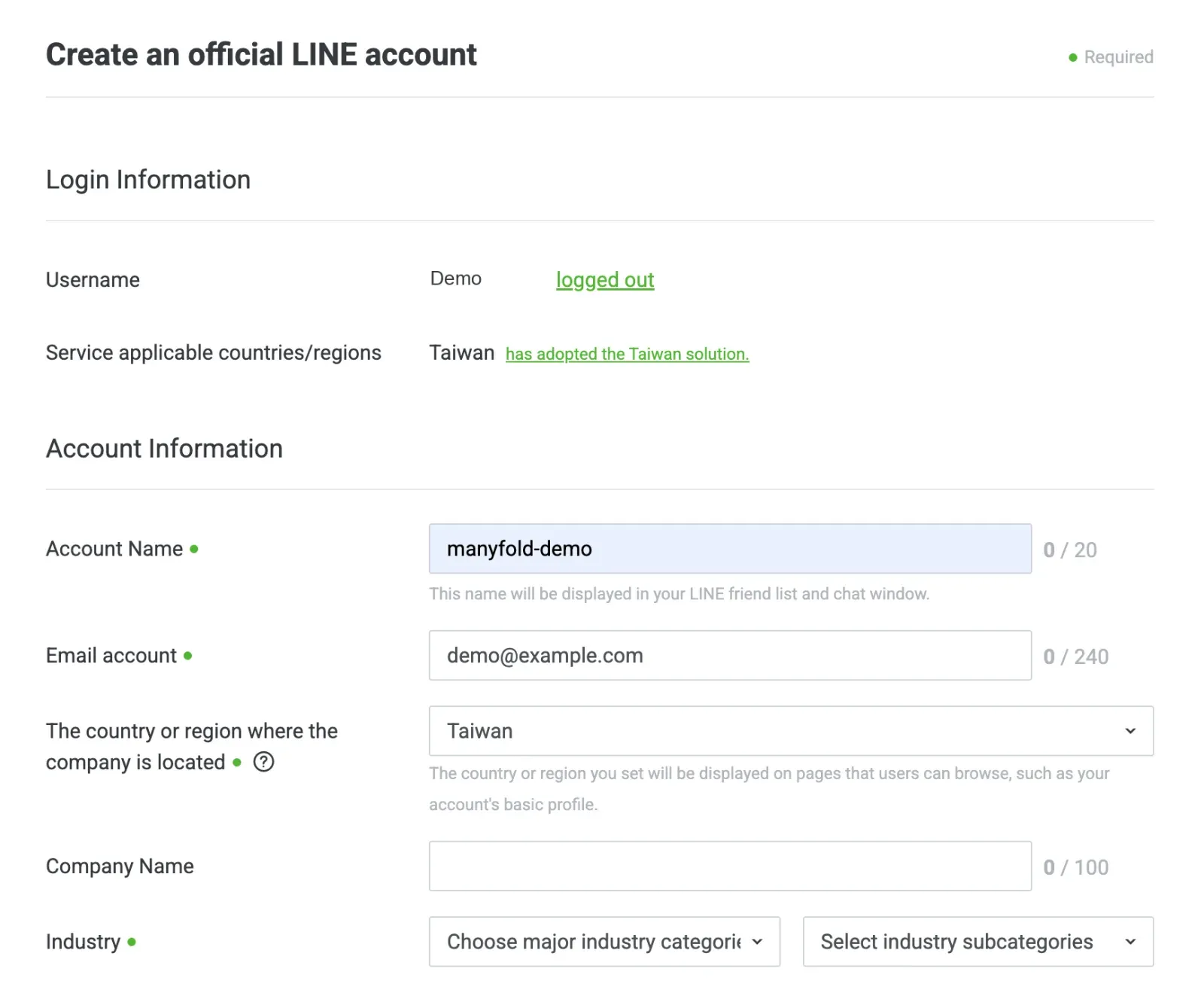
- Choose to create an account, then fill in the account name, contact email, and industry.
- For a first test you can defer verification. An unverified account can still enable the Messaging API.
- After creation, open the LINE Official Account Manager and confirm that the account selected in the sidebar is the one you just made.
Enable the Messaging API
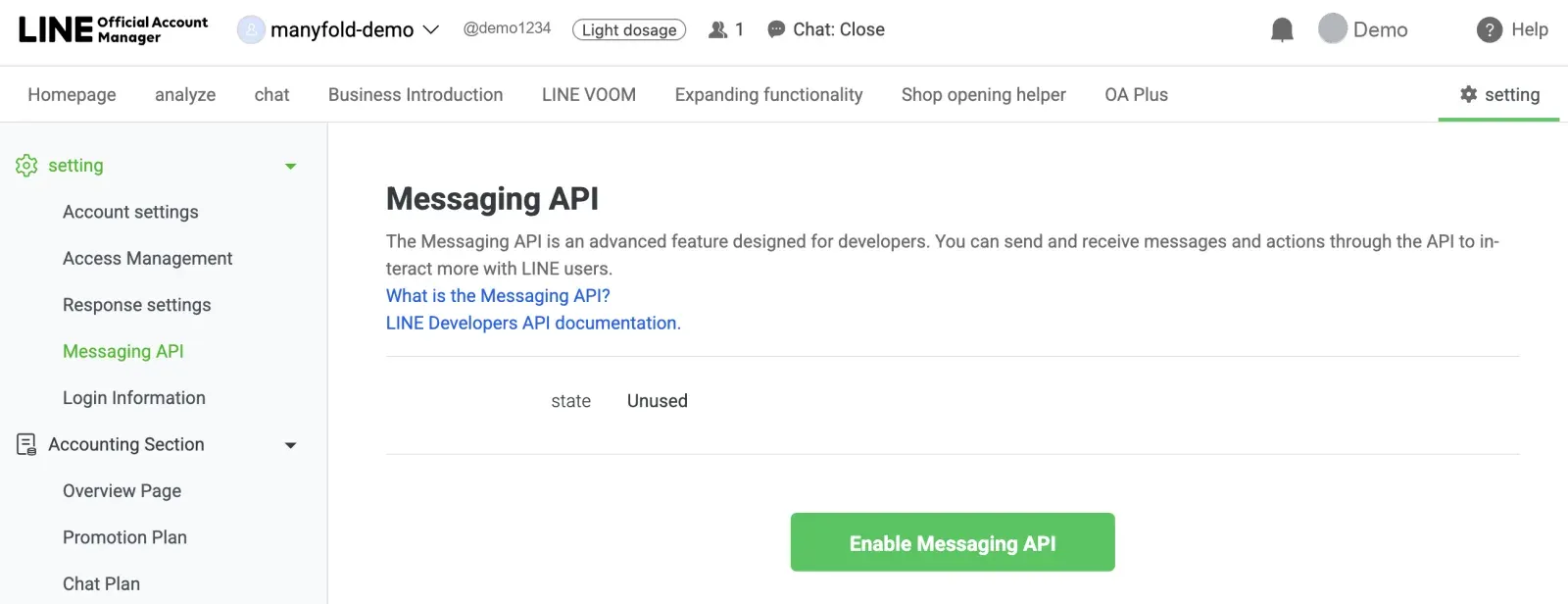
- In the LINE Official Account Manager, open Settings.
- Find Messaging API in the settings menu and enable it.
- Select an existing provider or create a new one. A provider name is usually a company, project, or brand name.
- Accept the prompts to finish enabling it.
Copy the channel secret and the access token
- Channel ID identifies this Messaging API channel.
- Channel secret verifies that an inbound LINE webhook request really came from LINE.
- Channel access token lets an external system call the Messaging API on behalf of the official account.
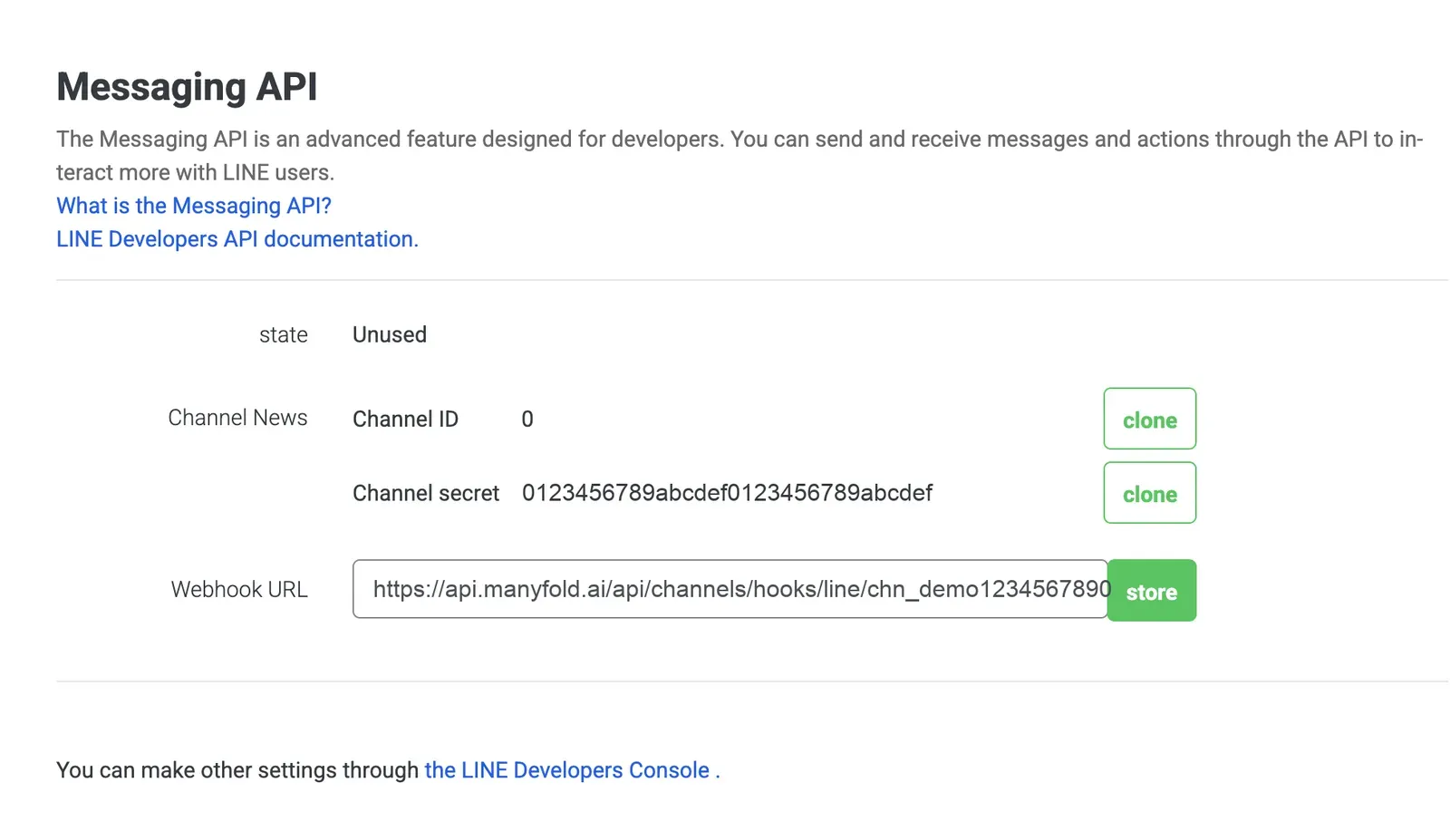
The Messaging API page in the LINE Official Account Manager carries the Channel ID and the Channel secret, and it is the page the webhook URL goes on later. Copy the Channel secret from here.
The access token is issued in the LINE Developers console instead:
- Open the LINE Developers console from the Messaging API settings page, or go to
developers.line.biz. - Select the provider you used, then the matching Messaging API channel.
- Open the Messaging API tab and scroll to Channel access token (long-lived).
- Click Issue and copy the token into a private credential store. The button reads Reissue once a token already exists. Treat both values like passwords.
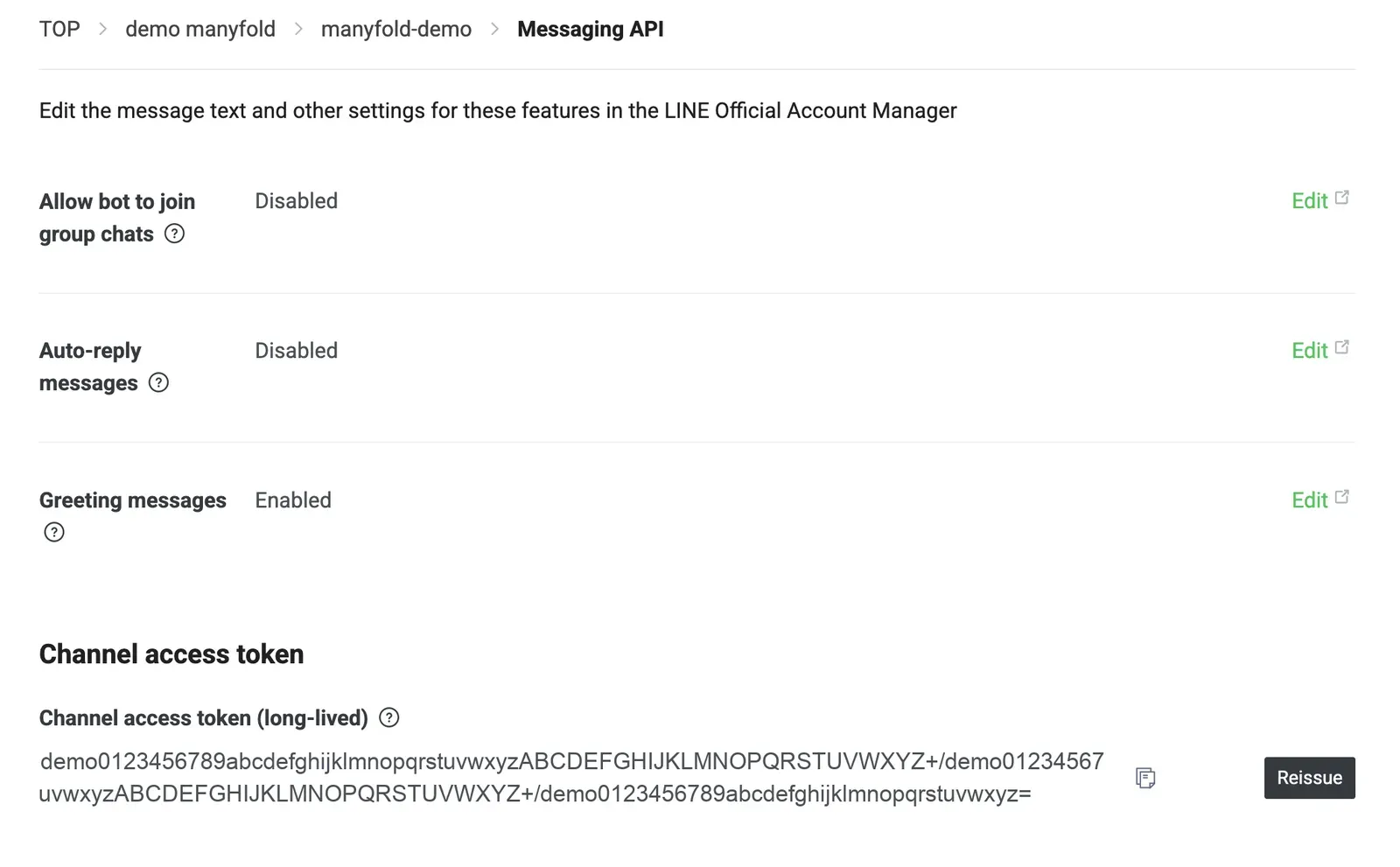
On the same tab, turn on Allow bot to join group chats if the agent should work in groups.
Connect it to Manyfold
-
Open Settings -> Channels.
-
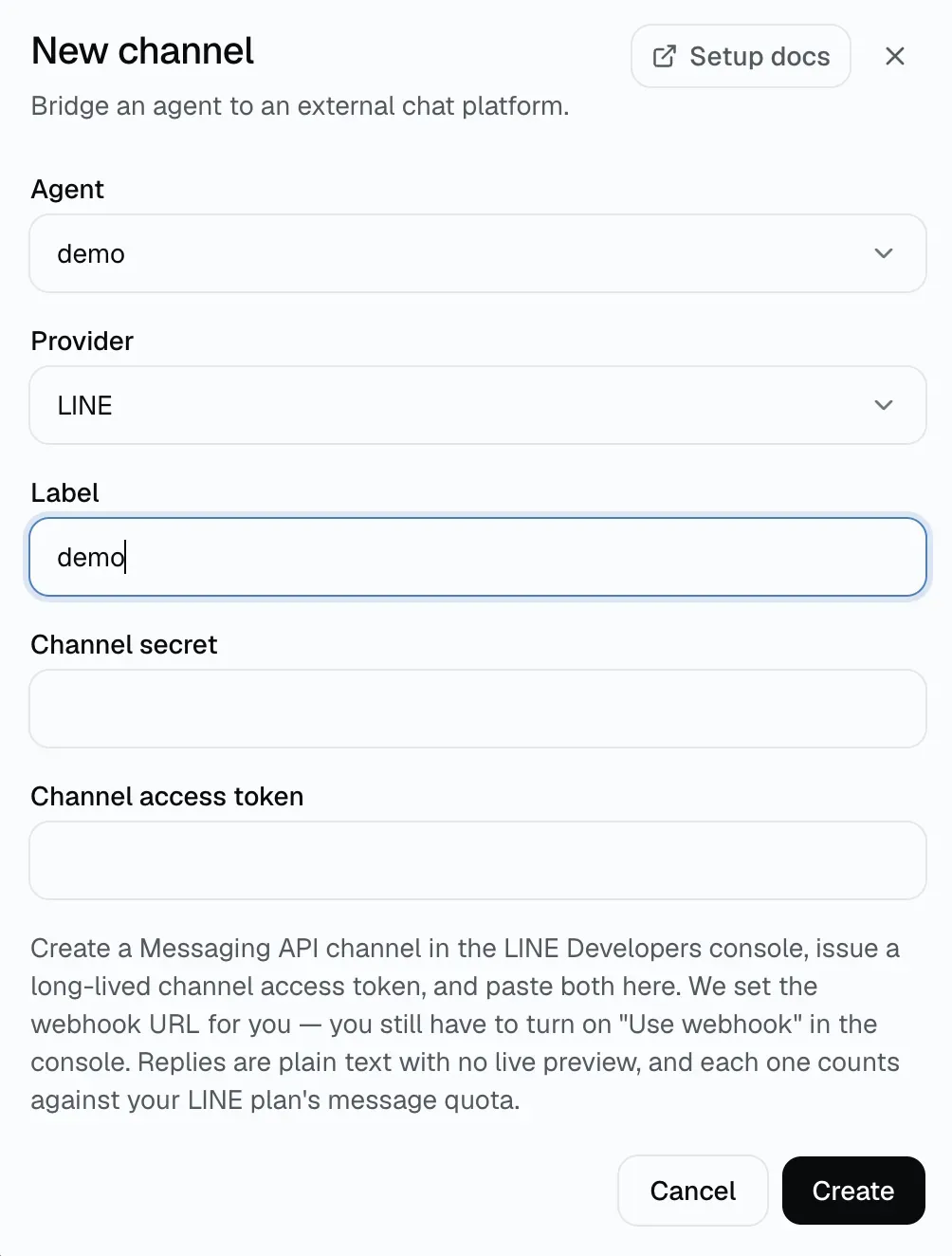
Create a channel and choose LINE.
-
Select the agent that should receive messages.
-
Enter a label and paste the channel secret and the channel access token.
-
Create the channel. Manyfold registers it with LINE in the same step and sets the webhook URL on the Messaging API channel.
-
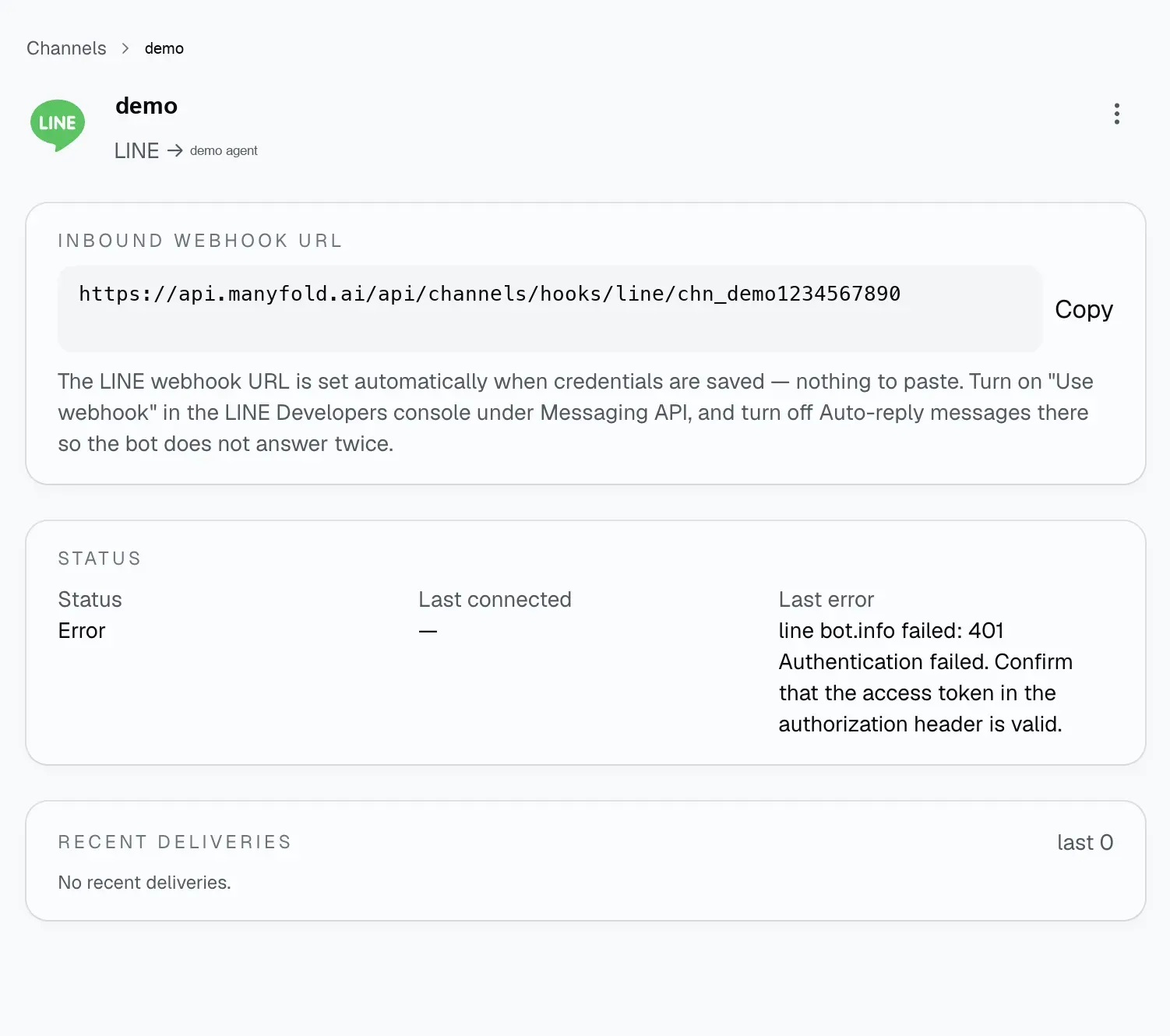
Open the channel detail page. It shows the Inbound webhook URL that was registered.
-
Back in the LINE Official Account Manager, open the Messaging API page and check its Webhook URL field. Manyfold will have filled it in; if the field is empty, paste the inbound URL there and save.
On registration Manyfold reads the bot identity (/v2/bot/info), sets the webhook URL, and activates the channel. Identity is read first, so a bad access token stops registration before the webhook is set. If the channel reports line bot.info failed: 401, correct the access token and register again, or paste the inbound webhook URL into Webhook settings yourself.
Every inbound request is verified against the channel secret with LINE’s x-line-signature header. Rotating credentials replaces both values at once, so enter the channel secret and the access token together.
Turn on the webhook and turn off LINE’s built-in replies
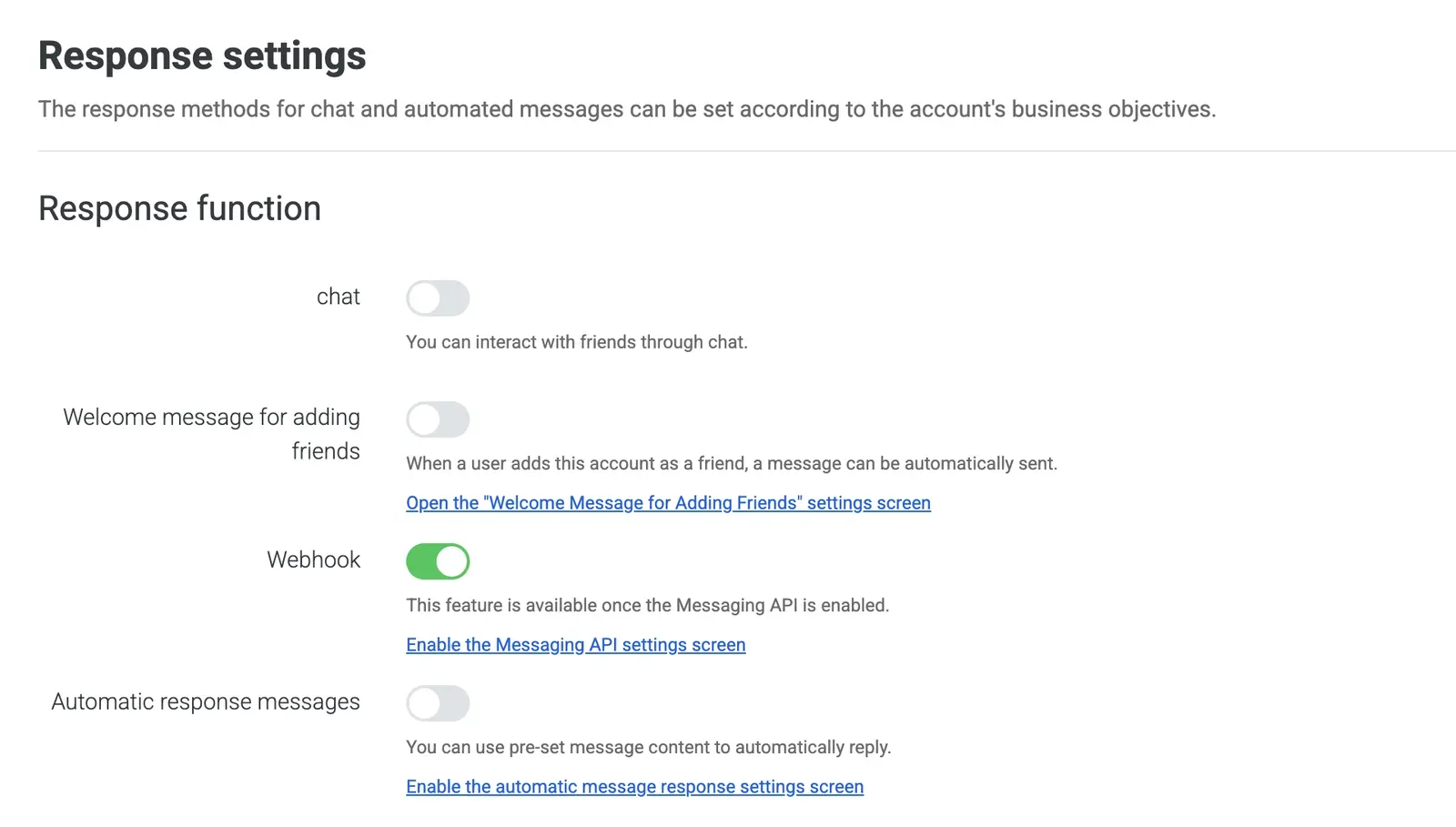
Do this last, once the webhook URL is in place. Two settings decide whether messages actually reach Manyfold, and neither can be changed through the API. Both live under Response settings in the LINE Official Account Manager.
- Use webhook must be on. The Response settings page labels this row simply Webhook. Manyfold sets the webhook URL, but it cannot flip this switch — the channel’s Test action reports when it is off.
- Auto-reply messages and Greeting messages should be off. Left on, LINE answers first and the user sees two replies. Some console languages label these Automatic response messages and Welcome message for adding friends.
With both settings done, run Test on the channel detail page in Manyfold.
Conversation behavior
- One-on-one chats get a separate session per LINE user.
- In groups and rooms, sessions are separated per user unless Share session in channel is enabled.
- LINE has no threads, so there is no thread-isolation setting.
- With Mention only on (the default), a group message must @mention the account. Detection uses LINE’s own
isSelfflag on the mention, so renaming the account does not break it — and an@allbroadcast does not count as a mention. - Replies are plain text. Markdown is flattened before sending: code fences and inline backticks are unwrapped,
**bold**/*italic*/~~strike~~markers are dropped,[text](url)becomestext (url), and headings, horizontal rules and blockquote markers are removed. Underscore forms (_italic_,__bold__) are left alone so identifiers likemy_func_namesurvive intact. - Replies longer than 5,000 characters are split into several messages, and each push carries at most five of them.
- In a group, the reply quotes the message that triggered it. Direct-message replies are not quoted.
- Incoming images, video, audio and files are downloaded with the channel access token and attached to the turn.
- Typed slash commands work everywhere; the command list is in Session switching.
- Sender display names are looked up per user and cached for the life of the process.
Send proactively from the Agent
An Agent can use mf channels send to message a LINE user or a group the account belongs to. File sending is not supported on LINE, and there is no way to reply to a specific past message — a quote needs a token that only exists on a message the bot just received. See Send from an agent for target IDs, delivery results and limits.
Settings
| Setting | Recommendation |
|---|---|
| Allowed user IDs | Leave empty to let anyone who can reach the account use the agent; otherwise list LINE user IDs (U…). |
| Operator user IDs | Leave empty to disable agent-wide commands such as /model from LINE. Anyone listed here can run them, and is allowed through even if the allow list omits them. |
| Allowed group / room IDs | Leave empty to answer in every group the account was invited to; otherwise list group (C…) or room (R…) IDs. |
| Mention only | Keep on for groups. One-on-one chats are unaffected. |
| Shared session | Keep off for per-user context; turn on when everyone in a group should share one conversation. |
| Send message context | Keep on so the agent receives sender and message IDs with each turn. |
| Progress mode | Fixed to final replies. LINE cannot edit a sent message, so a live preview is impossible. |
resetOnIdleMins (API) | Set a minute threshold to start a fresh session after inactivity; leave unset or 0 to disable. |
Verify
Run Test on the channel detail page. A healthy result confirms the bot identity, that LINE’s webhook endpoint points at this channel, and that Use webhook is on.
Then test the paths you intend to use:
- Add the Official Account as a friend and send it a direct message.
- Send it an image to confirm attachments reach the workspace.
- For group use, invite the account to a group and send
@YourBot hello. - Run
/helpto confirm the command handler.
Troubleshooting
- Test fails on the bot identity check:
line bot.info failed: 401means the channel access token is wrong or was revoked. Issue a new long-lived token, save it, and register again. Registration stops at that point, so the webhook URL will not have been set yet. - Test says “Use webhook” is off: turn it on in the LINE Official Account Manager under Response settings, where the row is labelled simply Webhook. Manyfold cannot set it through the API.
- Every message gets two answers: turn off Auto-reply messages and Greeting messages in the LINE Official Account Manager.
- Nothing arrives at all: run the channel’s registration action again, then confirm the webhook URL in the console matches this channel’s inbound URL.
- Group messages are ignored: mention the account explicitly, or turn off Mention only. Also confirm Allow bot to join group chats is enabled, and that the group ID passes the allowed-group list if you set one.
- Replies stop after a while: check your LINE plan’s monthly message quota. Push messages are metered, and a split reply spends one message per part.
- A sticker gets no response: stickers carry no text and no downloadable content, so they are skipped.
- No typing animation in a group: LINE’s loading animation is a one-on-one feature and cannot be shown in a group or room.
- A user can run
/modelunexpectedly: they are on the operator list. Operators are allowed through the sender allow list as well.