Create and manage automations
Create a repeatable agent task from the Automations page, then update its schedule, model, channel, or active state as your workflow changes.
Click Automations in the sidebar → New automation, enter a title, prompt, schedule, agent, and model, then click Create.
After creation, you can update the repeat schedule, model, and result-delivery channel. You can also pause the task or use Run now to execute it once immediately.
Step 1: Open the Automations page
In the Manyfold left sidebar, click Automations. When the page opens, click New automation in the upper-right corner.
Step 2: Configure the automation
Break the repeatable task into five fields:
- Automation title: name the task clearly, such as Daily Research Brief.
- Prompt: describe what the agent should do, what it should return, and any required scope or format.
- Schedule: choose when the task should run and how often it should repeat.
- Agent: select the agent that will execute the task. This guide uses demo as the example.
- Model: choose the model for this automation, such as Gemini-3.6-flash-high.
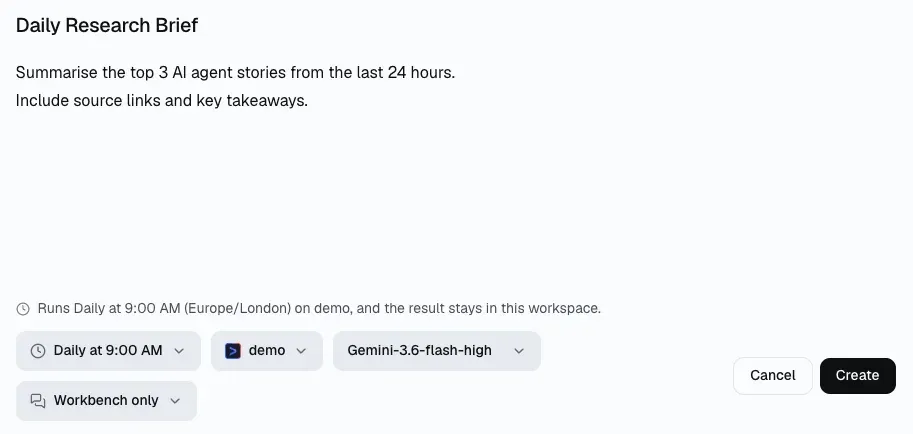
Set the title, prompt, schedule, agent, and model in one place.
A useful prompt should be specific enough to run without another clarification. For example:
Summarize the top 3 AI agent stories from the last 24 hours.
Include source links and key takeaways.
Return the result as a short Markdown brief.
Review the fields, then click Create.
Step 3: Manage and update settings after creation
Open a created automation to see its status, next run, and previous runs. The Details panel lets you change:
- Status: check whether the task is Active.
- Repeats: change the execution time or repeat schedule.
- Model: switch the model used by this task.
- Channel: choose where results should be delivered; leave it Off when no team delivery is needed.
Use Pause to stop scheduled runs temporarily. Use Run now to execute it once without waiting for the next scheduled time.
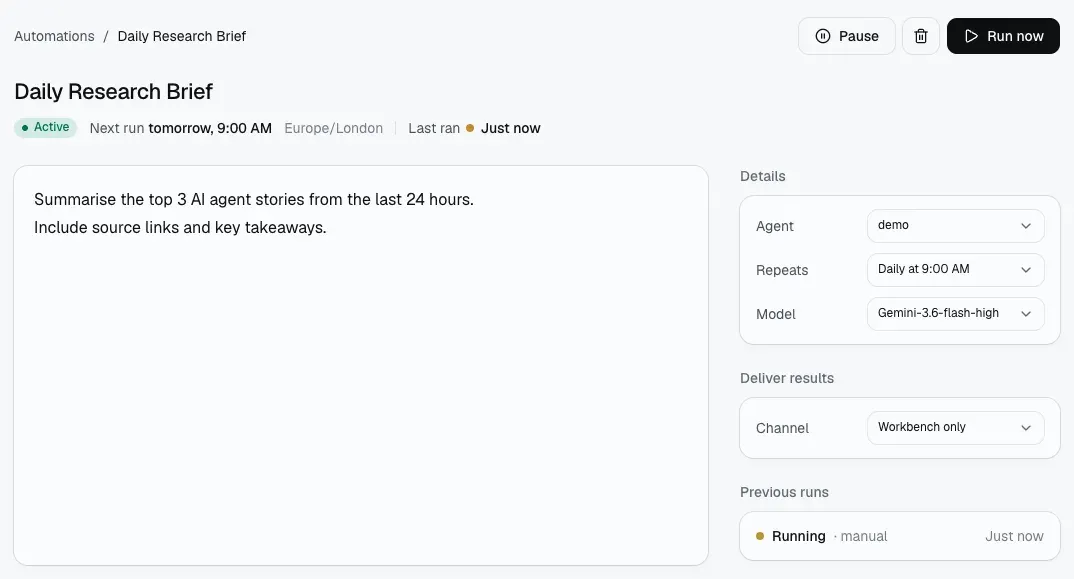
The details page centralizes Status, Repeats, Model, Channel, Pause, and Run now.
Step 4: Manage multiple automations
Once you have more than one task, use the Automations overview to see which ones are running and which ones are paused.
- Current: active automations and their next run times.
- Paused: automations that will not run on their saved schedule until resumed.
- Task name and Agent: quick context for what each automation does.
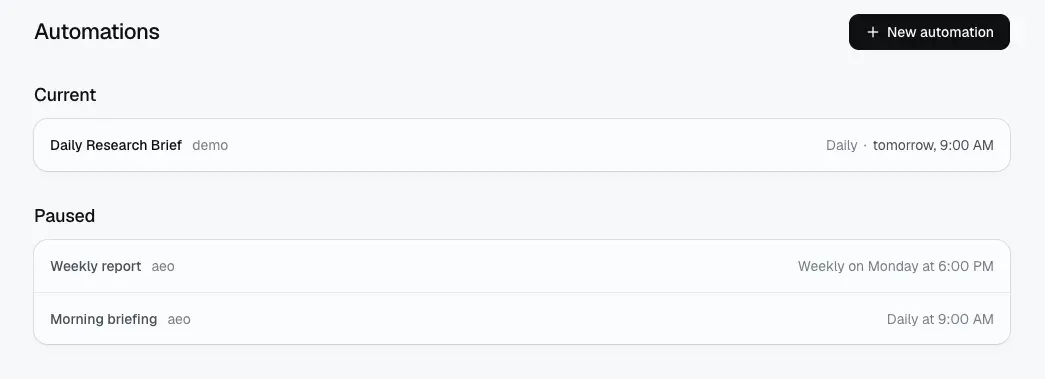
Use Current and Paused groups to manage multiple automations.
Give each automation a clear, searchable name and review its previous runs regularly so stale tasks do not keep running unnoticed.
Run quotas
When the run allowance for your current usage period is exhausted, scheduled runs wait. Manyfold periodically checks for available allowance and then schedules the next future occurrence. Increasing the allowance or reaching the usage-period reset does not require editing the automation. Missed occurrences are not replayed, and manually paused automations stay paused.
For schedules blocked by quota on an older installation, confirm the quota skip before saving the schedule again. A far-future next-run time alone does not identify a quota block.
Frequently asked questions
-
How are automations different from agents?
The agent performs the work. The automation defines when it runs, which agent and model it uses, and whether the result is delivered to a channel.
-
Can I run it once without changing the schedule?
Yes. Click Run now on the details page to execute it once while keeping the saved repeat schedule.
-
When should I use a channel?
Use a channel when the result should go to a team tool such as Slack, Telegram, or Discord. Otherwise, leave Channel set to Off.
Want the concept first? Read What are Manyfold Automations?. To deliver results to a team tool, see the Slack channel guide.