Discord
Connect a Discord bot to a Manyfold agent.
Connect Discord when you want an agent in direct messages, server channels, or threads. Manyfold maintains a Discord Gateway connection, registers native application commands, and can preserve surrounding channel context for mention-gated conversations.
What the channel supports
| Capability | Support |
|---|---|
| DMs, server channels, and threads | Yes; server messages require an @mention by default. |
| Native slash commands | Yes; Manyfold registers them globally for the application. |
| Incoming and outgoing files | Yes; file-only messages work and agent-produced files can be attached. |
| Native replies | Yes; server answers reference the triggering message. |
| Live progress and typing | Yes; Discord typing plus an editable preview message. |
| History backfill | Yes; recent server discussion can be added when the bot is mentioned. |
| Usage footer | Optional model, token, cost, duration, and tool summary. |
Prerequisites
- An existing Manyfold agent.
- Permission to create a Discord application.
- Permission to invite the bot to each target server.
Create the Discord application
-
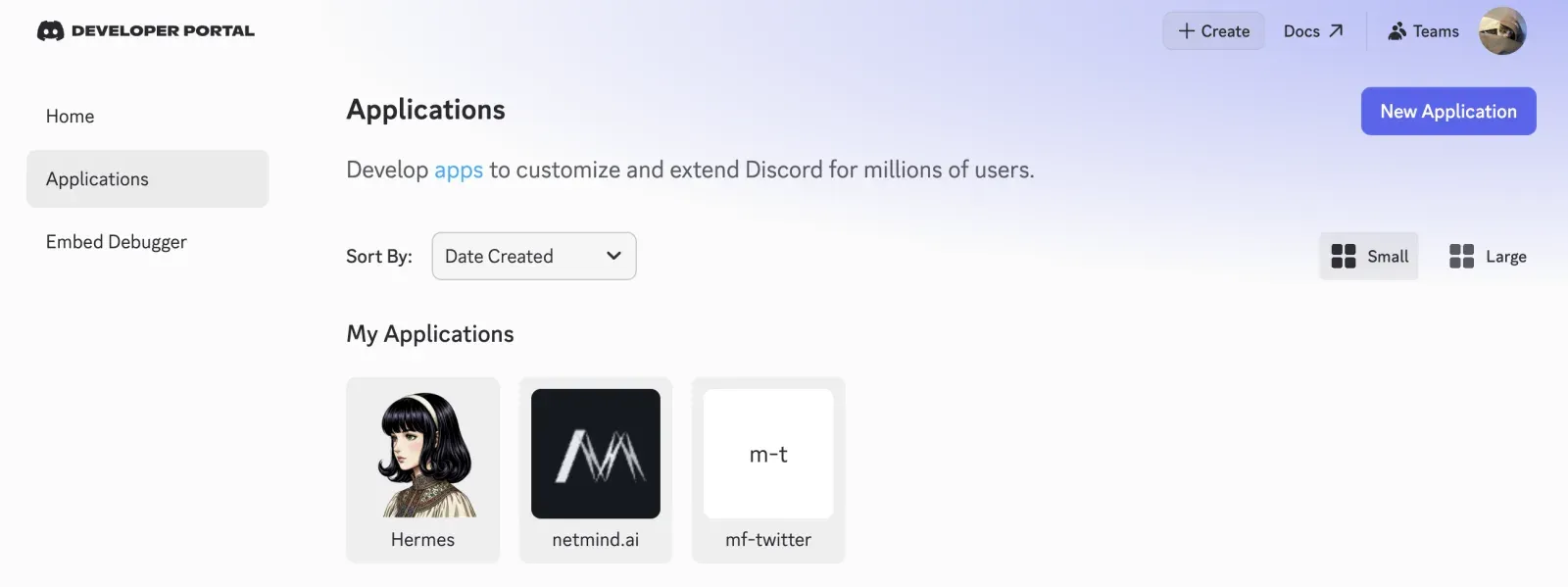
Open the Discord Developer Portal.
-
Create an application.
-
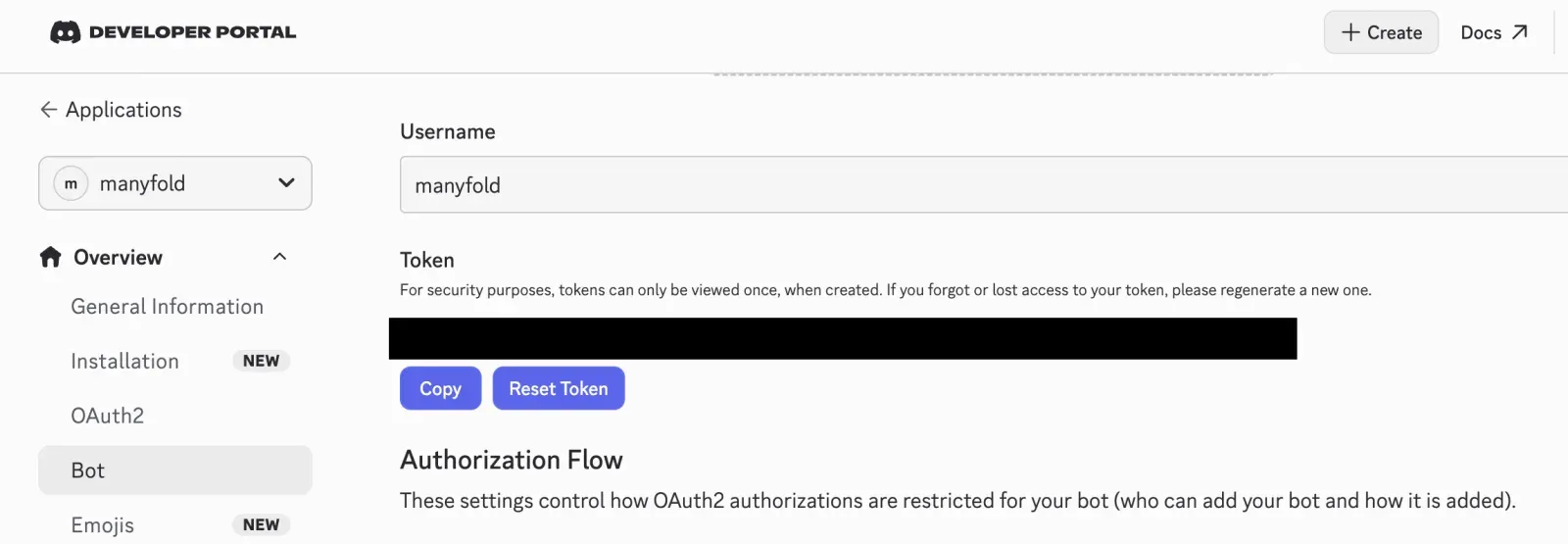
Open Bot, create the bot user, and copy or reset its token. Treat the token like a password.
-
Under Privileged Gateway Intents, enable Message Content Intent.
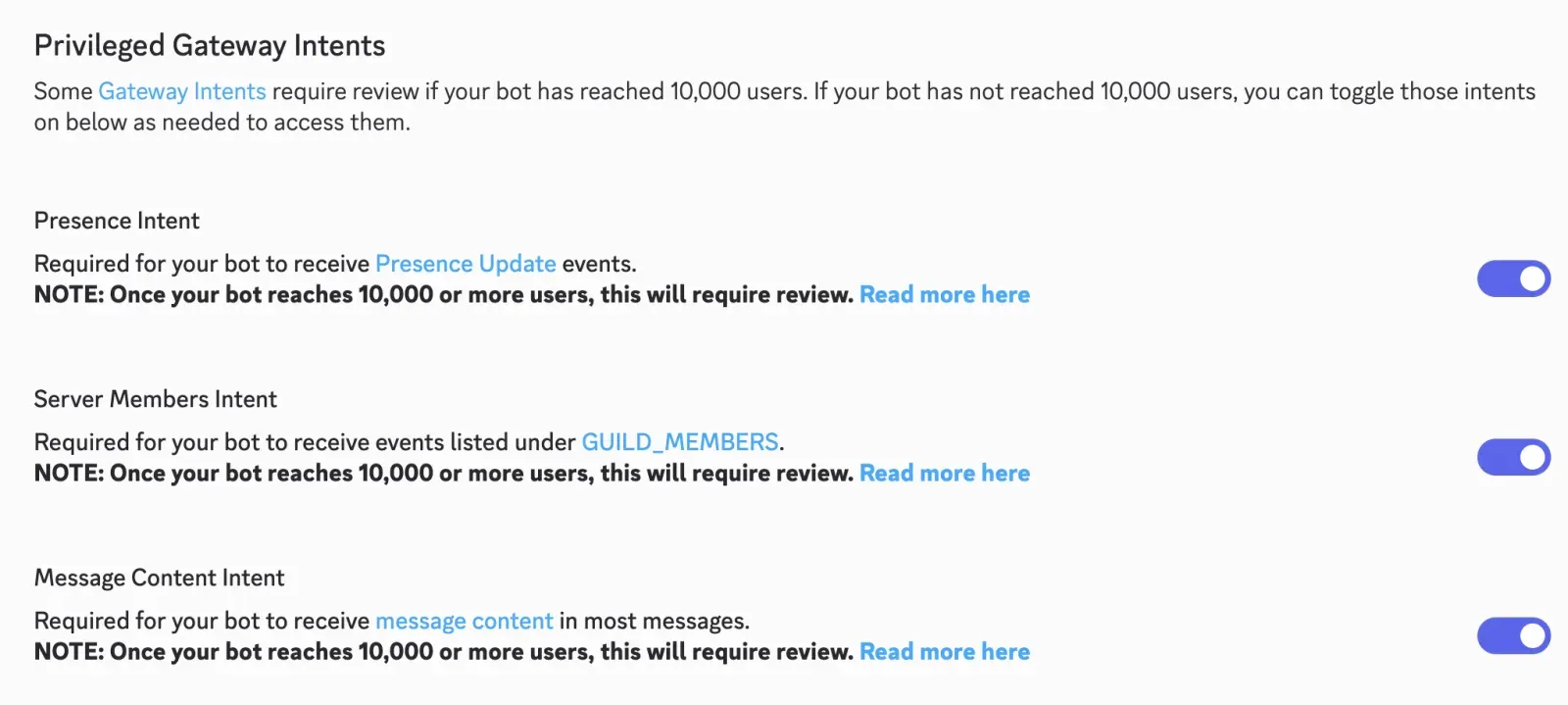
Message Content Intent is required because Manyfold handles normal messages as well as slash commands. Without it, the Gateway can connect but user prompts and attachment metadata may be empty. Verified applications in 100 or more servers may also need Discord approval for this privileged intent.
Invite the bot
In OAuth2 -> URL Generator:
-
Select the
botandapplications.commandsscopes.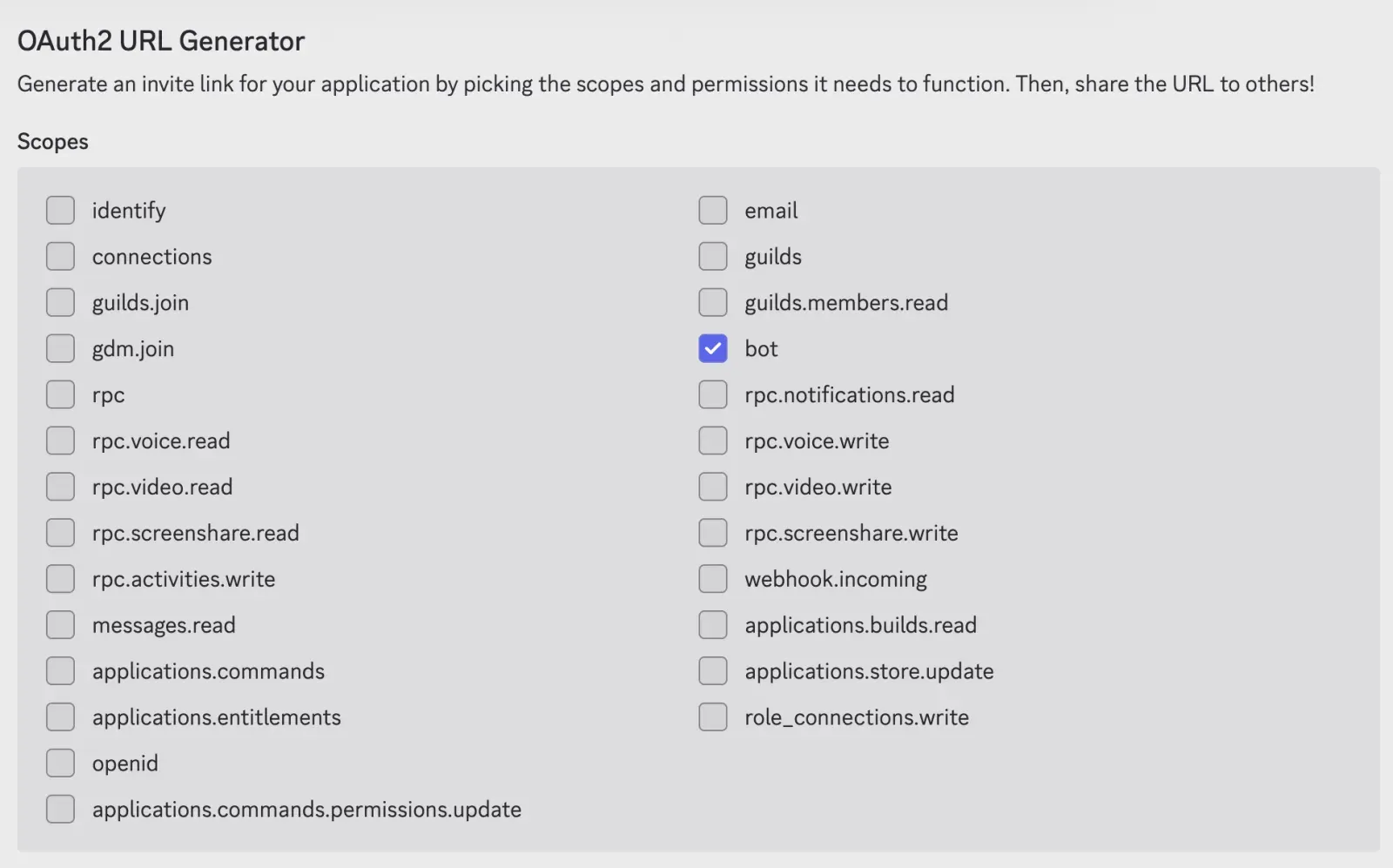
-
Select only the bot permissions needed for your settings:
| Bot permission | Required for |
|---|---|
| View Channels | Seeing target server channels. |
| Send Messages | Normal replies and progress messages. |
| Read Message History | Native reply context and history backfill. |
| Send Messages in Threads | Replying inside existing or auto-created threads. |
| Create Public Threads | Auto-thread in server text channels. |
| Attach Files | Sending files linked by the agent. |
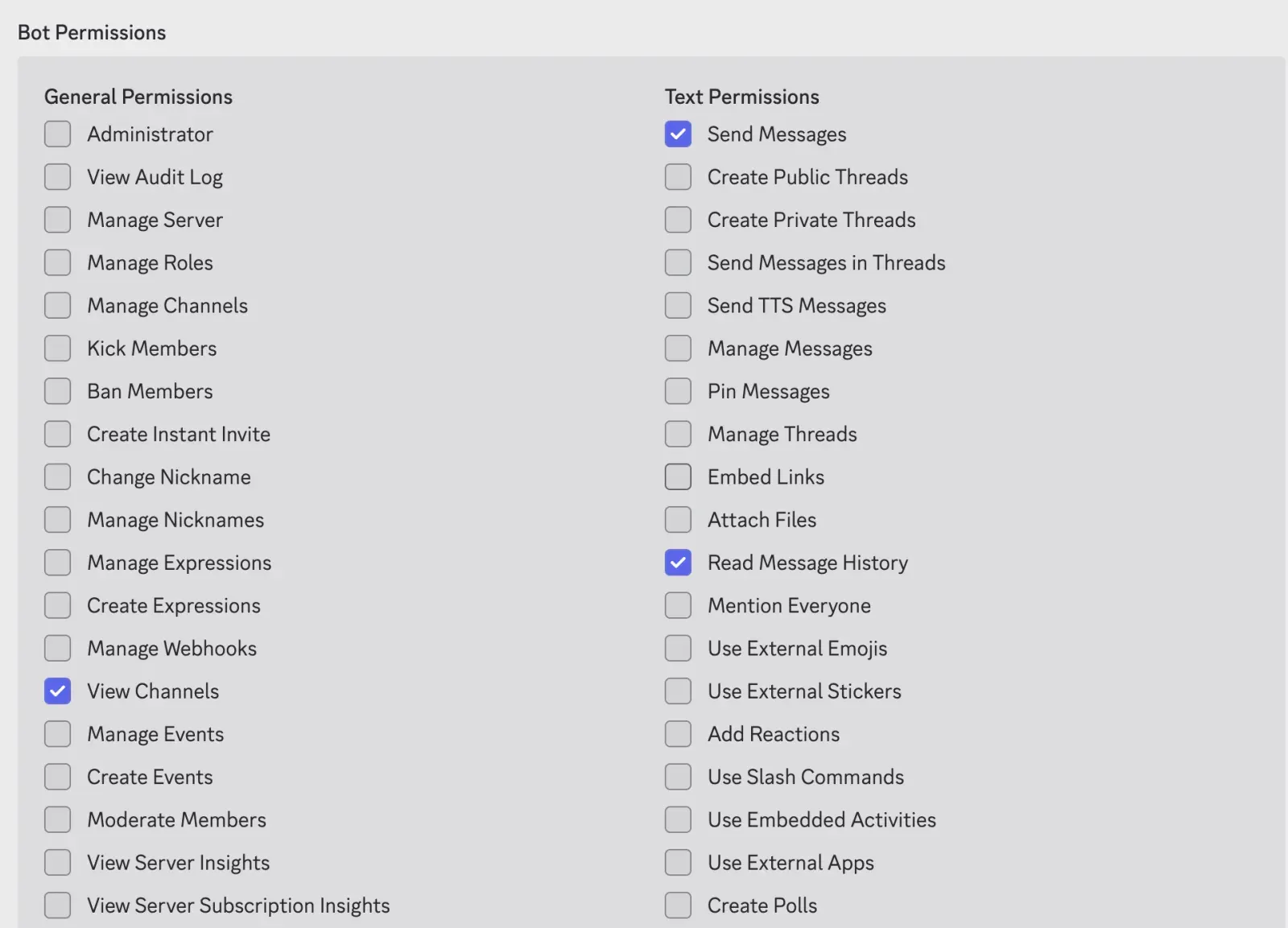
Open the generated URL and invite the bot. Channel-level permission overrides still apply even if the server role grants a permission.
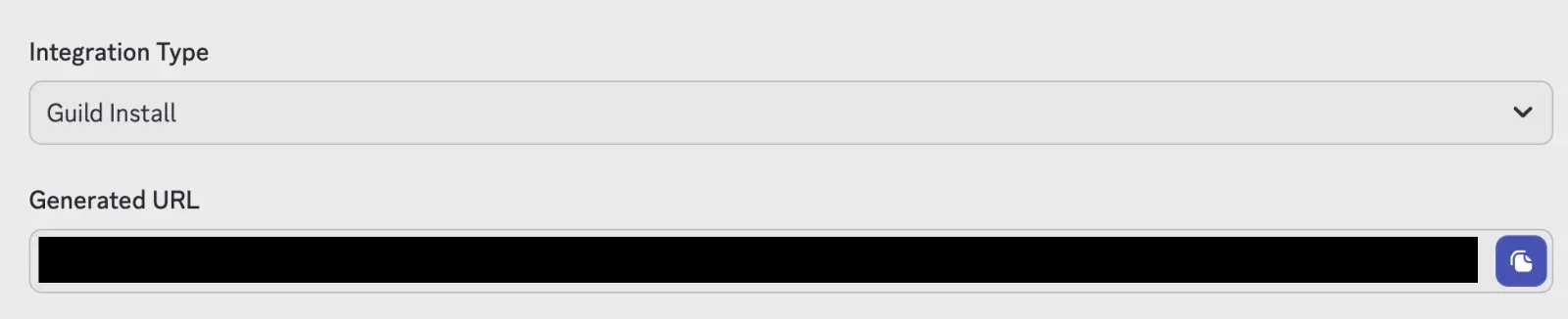
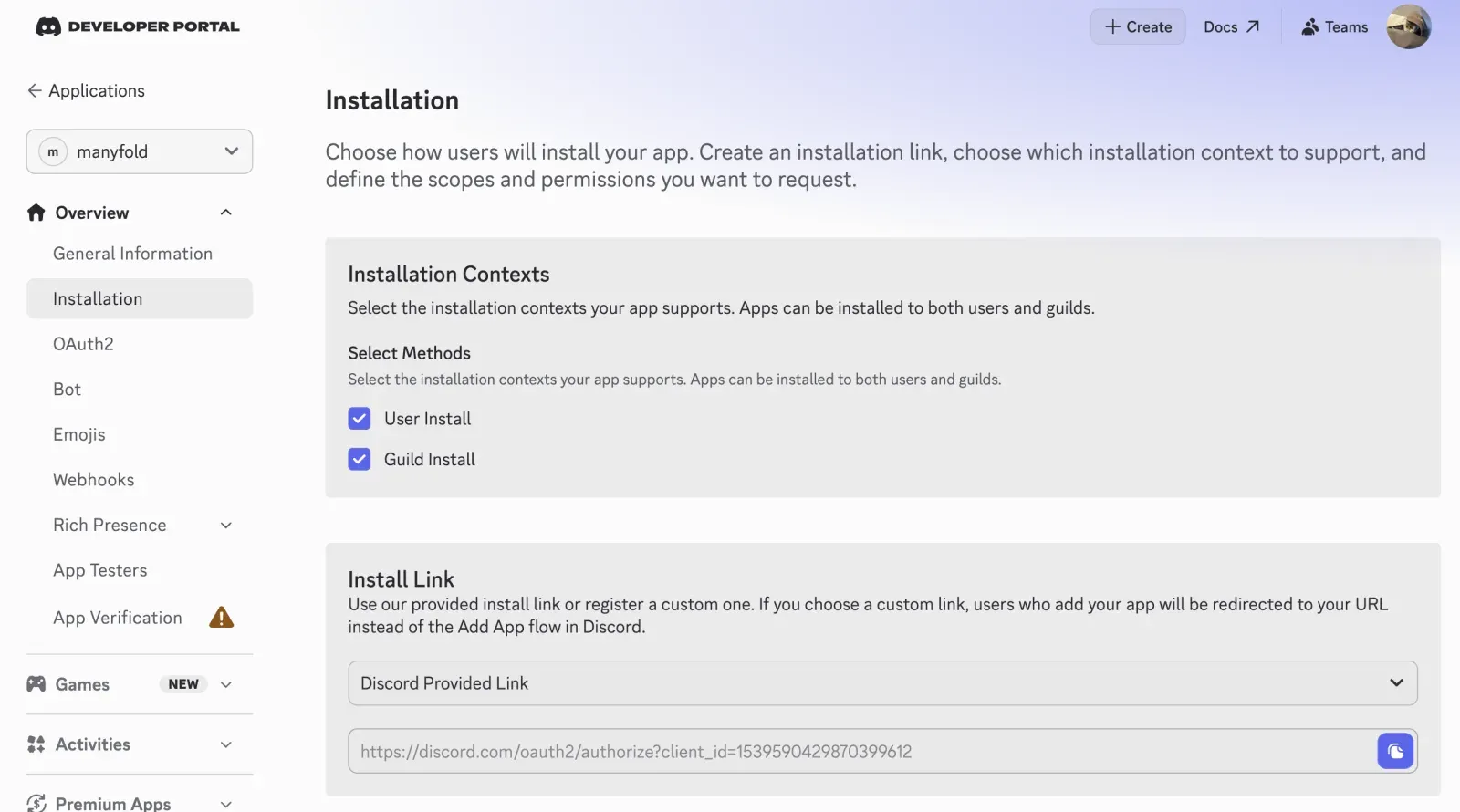
Installation -> Install Link is an alternative route to the same invite: choosing Discord Provided Link there generates an install URL without building one in the URL Generator. Either link invites the same application.
Connect it to Manyfold
-
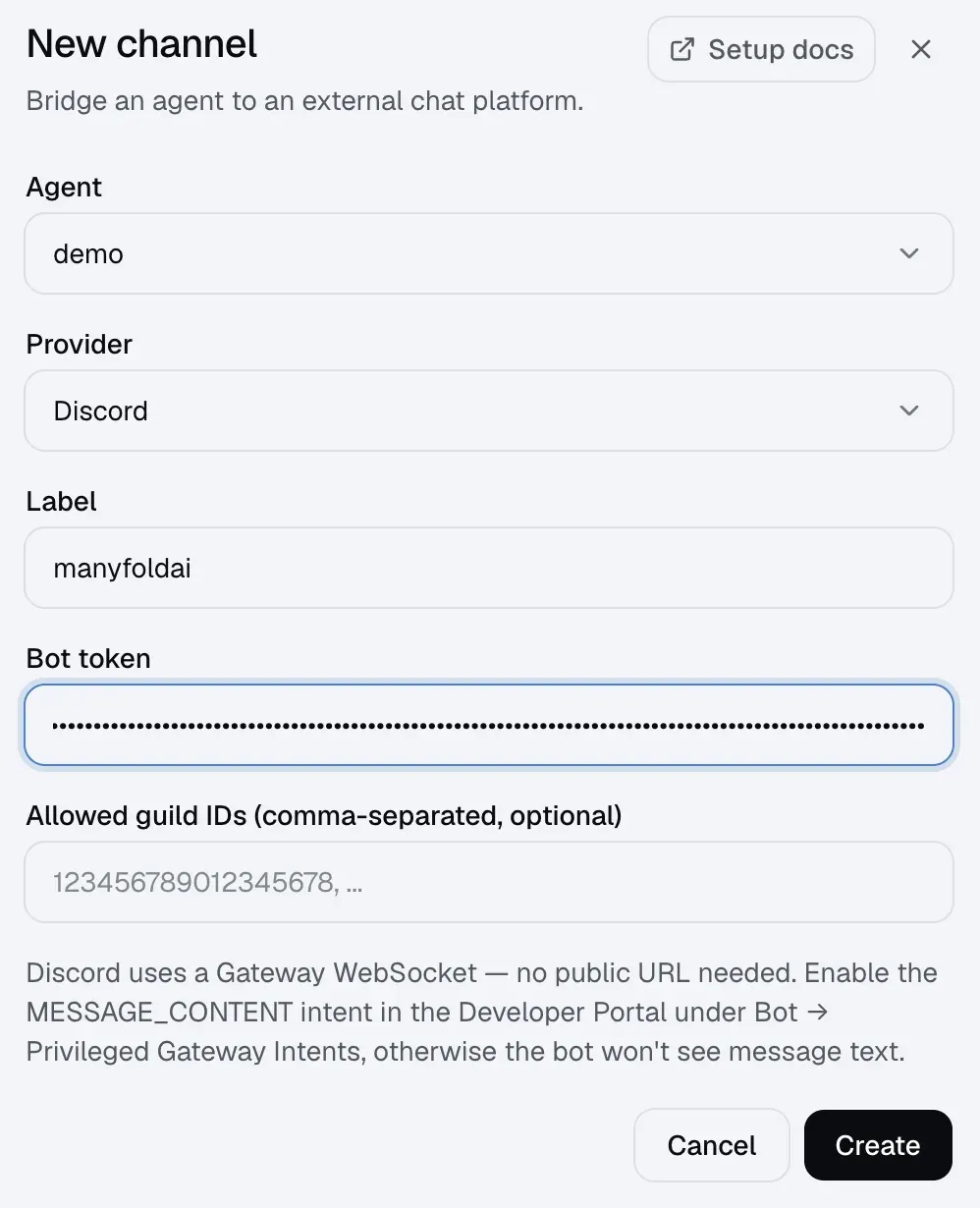
Open Settings -> Channels.
-
Create a channel and choose Discord.
-
Select the agent, enter a label, and paste the bot token.
-
Optionally enter one or more Allowed guild IDs.
-
Create the channel.
-
Run Register, then Test.
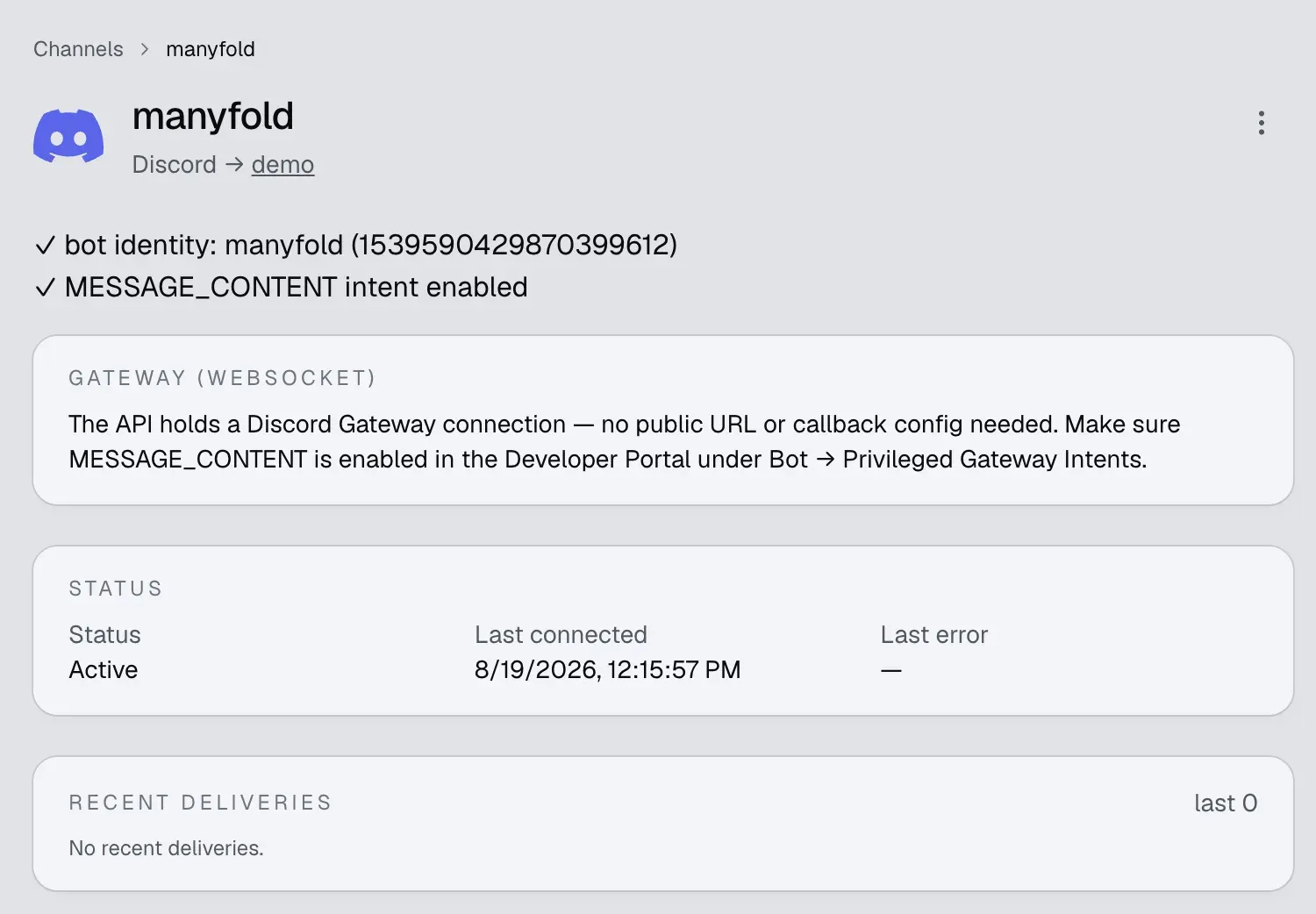
Discord does not use the Manyfold inbound URL. Registration reads the bot/application identity, checks Message Content Intent, and registers the supported global slash commands. The Gateway connection starts automatically and reconnects after transient disconnects.
Messages, replies, and files
- Text, attachments, and attachment-only messages can drive the agent.
- Manyfold accepts up to 10 files, 25 MB per file, and 100 MB total per inbound message. Unsupported or oversized files are skipped while the rest of the message continues.
- Replying to a Discord message includes a short quoted context with its author, text, and image attachments. In mention-only servers, use reply-with-ping or add an @mention.
- Server replies use Discord’s native message reference. DMs stay uncluttered and do not add a reply reference.
- When Attach files the agent links is enabled, generated workspace files linked in the final answer are sent as Discord attachments. The link itself reads as its label in the text reply, since the file follows it.
- File input depends on the selected agent framework supporting attachments.
Server context and threads
- With Thread isolation on, each Discord thread maps to a separate agent session and replies remain inside it.
- Auto-thread creates a public thread from an accepted top-level server message. It requires thread isolation and Create Public Threads permission; failure falls back to the original channel.
- With History backfill on, a server @mention can include recent messages that mention gating kept out of the agent transcript. The scan stops at the bot’s last conversational reply and treats the text as background context, not instructions.
- The history limit controls one fetch page from 1 to 100 messages. New auto-created threads skip backfill because they have no previous discussion.
Slash commands
Manyfold registers /new, /list, /switch, /current, /rename, /delete, /stop, /model, /usage, /history, and /help. Native command replies use the deferred Discord interaction when available.
Session commands do not require an @mention. See Session switching for behavior and permissions.
Settings
| Setting | Recommendation |
|---|---|
| Allowed guild IDs | Leave empty to allow every server and DMs. If non-empty, only listed servers are accepted and DMs are also blocked. |
| Mention only | Keep on for servers. DMs remain direct unless an allowed-guild list blocks them. |
| Shared session | Keep off for per-user channel context; enable only for a deliberately shared server conversation. |
| Thread isolation | Keep on so each Discord thread has its own session. |
| Auto-thread | Enable to move accepted top-level server prompts into new public threads. |
| Progress mode | Preview edits one message; Activity includes tool/thinking activity; Final sends only the answer. |
| Post final reply as a new message | Enable when a fresh Discord push notification matters. Manyfold deletes the preview and posts the final answer anew; default Edit updates in place. |
| Append a usage footer | Enable to show model, tokens, cost, duration, and tools after each answer. |
| Attach files the agent links | Keep on if users should receive generated workspace files. |
| Backfill channel history | Keep on for mention-gated team discussions; turn off for strict prompt-only context. |
| Send message context | Keep on so the agent receives sender, guild/channel, thread, and message IDs. |
Verify
Run Test to confirm the bot identity and Message Content Intent. Then:
- DM the bot if DMs are allowed.
- @mention it in an allowed server channel.
- Run
/helpfrom Discord’s command picker. - Test a thread, history backfill, and a small attachment if those capabilities matter.
Troubleshooting
- Message Content Intent is disabled: enable it under Bot -> Privileged Gateway Intents, then register/test again.
- Bot connects but ignores server messages: @mention the bot or turn off Mention only; check the allowed guild list.
- DMs are ignored: a non-empty allowed guild list intentionally blocks DMs. Clear it if DMs should work.
- Bot cannot answer or show progress: grant View Channels and Send Messages, and check channel overrides.
- The command menu is missing: re-invite with
applications.commands, then run registration. Global commands may take time to propagate. - History or quoted context is missing: grant Read Message History and enable history backfill when needed.
- Auto-thread falls back to the parent channel: grant Create Public Threads and keep thread isolation on.
- Bot is silent in a thread: grant Send Messages in Threads.
- Agent-produced files are missing: grant Attach Files and enable Attach files the agent links.
- An inbound attachment is skipped: check the 10-file, 25 MB per-file, and 100 MB total limits and confirm the agent supports file input.